Using CTProPay gives your patients the power to easily, accurately, and securely make payments right from the convenience of their mobile device. Whether for a current or outstanding balance, CTProPay can help you retrieve payments from your patients quickly, easily, and automatically. With secure, HIPAA-compliant messaging and click-through payment processing, now you can stay better connected with your patients beyond the four walls of your practice. Free up the time and cost of collecting payments with the power of CTProPay's mobile patient payments.
Would you rather watch a video? Click here for quick visual instructions on how to get started with CTProPay.
1. Enroll in CTProPay
- Update your software to 6.6 or later.
- Register online at www.mychirotouch.com/ctservices.aspx>CTProPay. CTProPay works hand in hand with SwervePay credit card processing.
- Once you enter your credit card information, you will be directed to fill in an application form with SwervePay.
- SwervePay will then send a confirmation e-mail. Please check your email to confirm your registration.
- Within 72 hours, ChiroTouch will contact you to get you started.
Once you are enrolled in CTProPay, enlist each patient in the CTProPay service by performing the following steps:
- Log in to the Front Desk.
- Click Patient Mgmt.
- Select your patient and click Pat. Info.
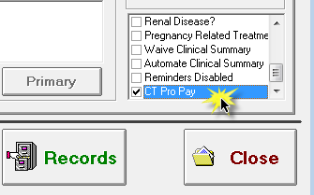
- Select the CT Pro Pay checkbox in the lower right-hand corner of the screen (this option is at the bottom of the checkbox list).
- Patients must have a valid cell phone number and e-mail in the system to be enrolled in CTProPay. The e-mail and cell number is where they will receive their CTProPay statements and payment receipts.
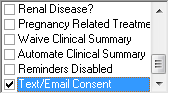
Incorporating consent language into your Patient Sign-In app is a simple process with ChiroTouch. Once CTProPay is activated on your system, a “Full Patient Consent Form.pdf” form is automatically added to the Patient Self Check-In process. Patients can then accept or deny this disclaimer via CT Sign-In or the CTM Sign-in mobile app. If the patient declines this consent, no PDF will be saved, the Text/Email Consent checkbox will remain unchecked, and the patient will no longer receive messages from CTProPay. To restart communications for this patient, manually check the Text/Email Consent box.
Add a Paragraph to Your Existing Paperwork
If you already have patient intake forms or a notice of privacy policy on which you’d like to append consent language, you can find an example paragraph available to copy or modify for use on the CTProPay page of MyChiroTouch.com. Have an existing PDF you’d like to include this verbiage on but don’t have Adobe Acrobat Pro? You can use PDF Escape to modify your existing PDFs for free.
CTProPay reflects all charges that fall within your last statement date range. ChiroTouch syncs patient charges with CTProPay when you perform the act of running a statement for that patient in the ChiroTouch system. (Please note that any subsequent payments made and applied to the synced charges will automatically update in real-time.)
The act of running a statement in ChiroTouch indicates to the CTProPay service that the balances reflected within the ChiroTouch system are correct. You can sync these balances via the Patient Ledger, the Billing/Statements/Reports screen, or the CT Accounting app.
NOTE: You must continue to run your statements as usual in order to sync new patient charges with CTProPay. New charges are not synced with the CTProPay service until you run a subsequent statement.Send your Batch Statements through the Patient Ledger
To send your batch statements and sync an individual patient's balances with the CTProPay service:
- Log in to the Front Desk.
- Click Patient Mgmt.
- Select the patient and click Ledger.
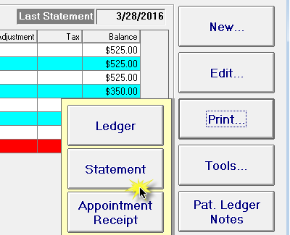
- Click Print
- Click Statement.
- Click Ok.
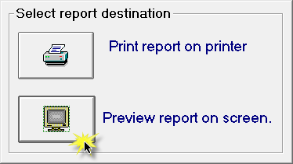
- Click Preview Report on Screen.
- Click Exit.
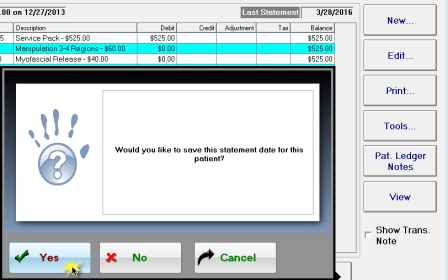
- When asked whether you would like to save this statement date for this patient, click Yes. The act of saving this statement date syncs this patient's balance between ChiroTouch and your CTProPay account.
Send your Bath Statements through the Billing/Statements/Reports Screen
- Log in to the Front Desk.
- Click Billing/Statements/Reports.
- Select the Statements tab.
- Set the statement type to Patient and make your desired statement selections by applying additional filters.
- Click Preview.
- Click Continue.
- When asked whether you would like to save this statement date for this patient, click Yes. The act of saving this statement date syncs this patient's balance between ChiroTouch and your CTProPay service.
Send your Bath Statements through the CTAccounting App
To send your batch statements and sync multiple patient balances with the CTProPay service, create a batch:
- Log in to ChiroTouch Accounting.
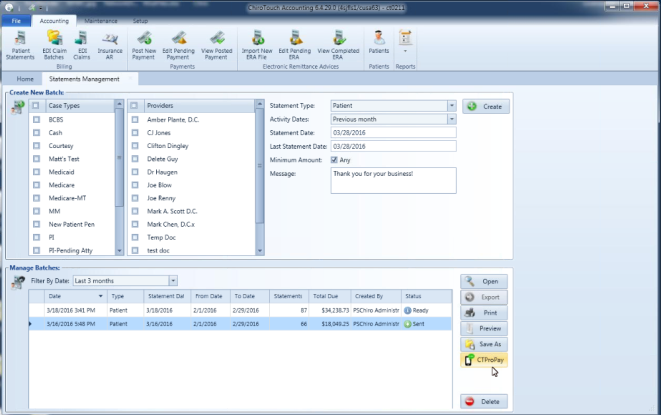
- Click Accounting and select Patient Statements.
- Make your desired statement selections by applying the filters available in the Create New Batch area, and click Create.
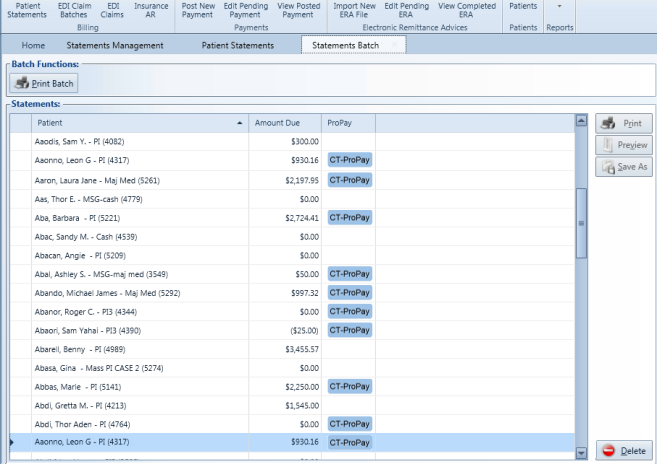
- The Statements Batchscreen opens (or you may select the batch from the Manage Batches section of the Statements Management screen. Click Preview to open this screen). The Preview screen provides an indication of which patients in the batch are enrolled with CTProPay.
- Remove any unwanted or questionable patient balances by selecting that row and then deleting that patient from the batch by clicking the Delete button.
- Once you have reviewed your batch, return to the Statements Management screen, select your batch from the Manage Batches list, and click CTProPay. This will sync patient data between ChiroTouch and CTProPay for all CTProPay-enabled patients included in this batch.
After CTProPay has been activated for a patient, they will begin receiving text message or email alerts notifying them of the balance on their account and offering them a convenient online or mobile payment method. Patients will receive these messages once every two weeks based on the information available in their Patient Information screen.
To ensure your patients are set up appropriately to receive these alerts, patients must have both an email and cell phone number listed:
- Text Alerts: Enter a cell phone number in the Cell field.
- Email Alerts:Enter an email in the Email field.
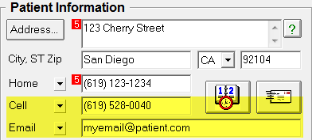 NOTE: If your patient prefers not to receive either email or text reminders, you must leave that field blank.
There are four message variations sent to patients based on their oldest date of service. These message variations are non-customizable:
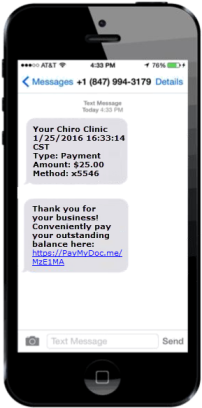
- Message sent to patients with an oldest balance due aged 60 days or less:
Thank you for your business, [patient first name]! Conveniently pay your outstanding balance with [practice name] here
- Message sent to patients with an oldest balance due aged 61 - 90 days:
Hello [patient first name], you have a balance due with our office. Please promptly pay your outstanding balance with [practice name] here
- Message sent to patients with an oldest balance due aged 91+ days:
Hello [patient first name], you have a past due balance with our office. Promptly pay your outstanding balance with [practice name] here
Patient text/email alerts appear similar to the following:
 DISCLAIMER:
Patients will only receive messages for balances of $5 or above. The CTProPay service does not send messages for balances that are below $5.
Patient messages are sent out once every 14 days until the time in which that patient no longer has an outstanding balance. This provides each practice with the ultimate flexibility in determining if—and when—to forgive outstanding balances.
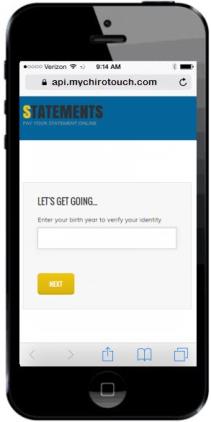
- To make a payment from their device, the patient must click on the link within the text or email message they receive in the original text/email alert. This brings the patient to a screen where they will authenticate their identity by providing the year in which they were born.
- Once they have validated their identity, the patient can view their outstanding balance. The patient may then either pay the full amount owed, pay a partial amount, or pay a custom amount towards their balance ($9,999 max).
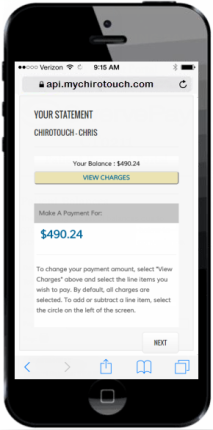
- If the patient chooses to pay a partial or custom amount, they may select/deselect the radio button to the left of each charge date to choose which charges they would like to apply their payment towards. Details of each charge can be viewed by clicking the up/down arrows to the right of each charge amount.
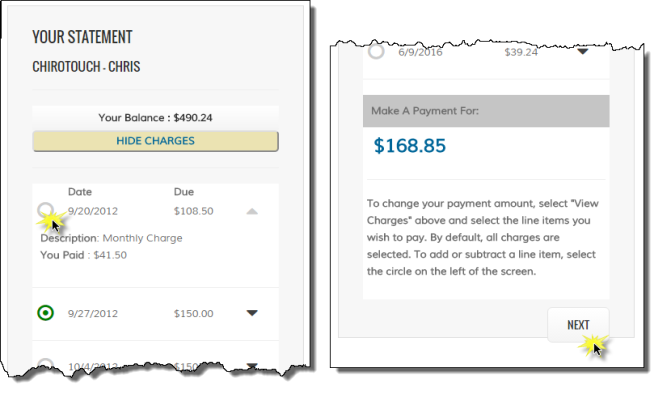
- Once the patient has selected the charges they would like to pay, they must click NEXT to continue.
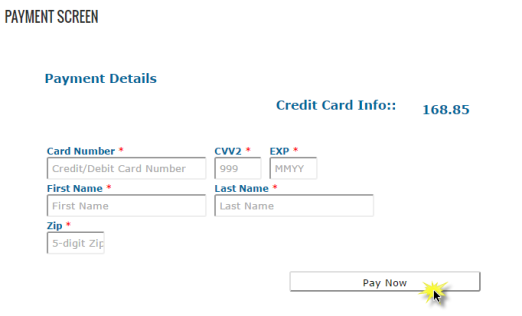
- The patient will then enter new payment information (or select an existing payment method) and click NEXT. This payment is then seamlessly synced to your ChiroTouch system.
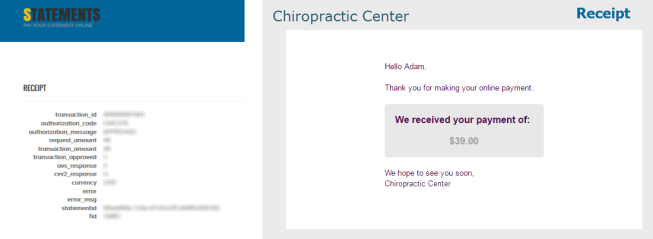
The system will display a patient receipt denoting that the payment was successful, and send them a receipt for their transaction via e-mail.
 NOTE: If a patient pays more than the requested amount, the remainder of that payment will be applied to the patient's longest outstanding (oldest) charges first. In the absence of additional outstanding charges, that payment will remain unassigned within the ChiroTouch system.
Patient payments will appear in the ledger with the description Payment-Credit Card (CTProPay) .

To see details of this payment, double-click the line item and review transaction details in the Merchant Details area of the details screen.
To run a report of all patient payments collected through CTProPay:
- Log in to Front Desk.
- Click Billing/Statements/Reports.
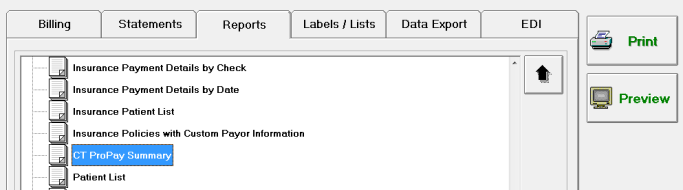
- Open the Reports tab.
- Select CT ProPay Summary and click Print or Preview.
- Select a date range for your report and click Next.
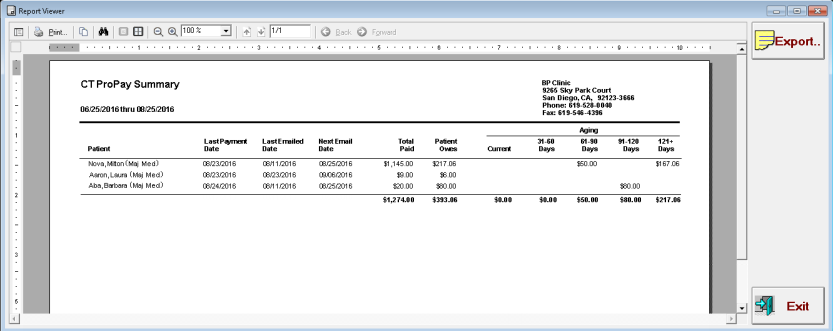
This report displays a list of CTProPay-activated patients, their last payment date, last emailed date, next email date, total amount paid, total owed, and aging information.
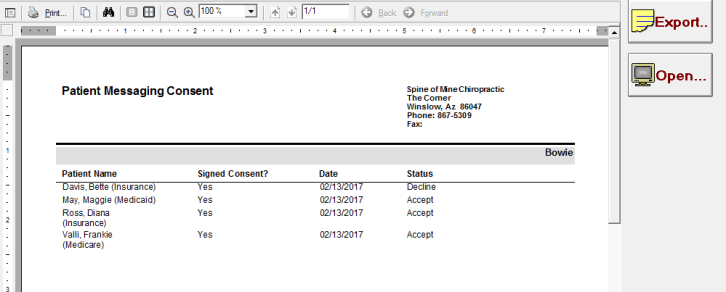
The Patient Messaging Consent report generates a list (sorted by provider) of patients who have signed the digital communication consent form, as well as those who have not. This report includes patient name, the date the consent form was presented to the patient, and whether the patient accepted or declined. ChiroTouch automatically deactivates messaging for patients who decline the messaging consent form.
If your patient agrees to the consent form at a later time, you can reactivate their CTProPay messaging by selecting the "Text/Email Consent" checkbox in the Front Desk > Patient Mgmt > Pat. Info screen.
To run a report of which clients have accepted or declined the digital communication consent form:
- Log in to Front Desk.
- Click Billing/Statements/Reports.
- Open the Reports tab.
- Select Patient Messaging Consent and click Print or Preview.
OR
- From the CT-Launcher, open the Reports application.
- Navigate to Patients > Notes and Documents > Patient Messaging Consent.
- Click an option to view, export, or print the report.
NOTE: If you have a patient enlisted in the CTProPay service who is not receiving text messages, refer to this report to check whether they mistakenly declined the Patient Consent form.
To place a hold on a patient's statement:
- Navigate to Front Desk>Patient Mgmt
- Select your patient from the list and click Pat. Info
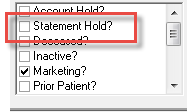
- Select the "Statement Hold?" checkbox.
CTProPay pulls the patient's phone number from the field marked as “Cell” and email address from the field marked as “Email” in the General tab in Pat. Info.
- CTProPay requires both a cell number and an email address. The Cell and Email fields do not need to be listed first in the General tab
- CTProPay AND Text/Email Consent must be checked in the Pat Info tab of the patient file
- Statement hold must be unchecked
If a cell number or email address is incorrect, the client will not be notified. There is no return or failure message that gets sent to the client. It is the responsibly of the office to verify this information with the patient.
CTProPay messages are sent to patients between 12pm – 3pm. If a statement is synced at before 12pm, the message will be received the same day. If the statement is sent during or after this time block, the message will be sent between 12-3pm the following day.
A message will be sent to those who:
- Have not received a CTProPay message within the past 14 days AND
- Have a balance above $5
No. The CTProPay program runs a check between 12-3pm looking for patients who have a balance over $5 and who have not received a statement message in the past 14 days. If you run a new batch of statements, but the patient received an alert 6 days ago, they will not receive a new alert for another 8 days.
For a patient who continues to have a balance above $5, they will get a message every 14 days until the balance is paid below $5. If the patient goes more than 14 days without a balance, they will not receive another alert until the next time they have a balance over $5 and a statement batch is run.
YES. If the patient pays from the CTProPay application or while in the office, both the patient ledger and the CTProPay balance will be updated automatically.
Any new balance that is generated outside the last statement dates will not be visible on the CTProPay application until the provider syncs another statement for that patient.
No. The CTProPay link is unique to each patient and does not change. The balance and statement behind the link may change, but the link itself will remain the same. The patient can save this link on their mobile device or computer and check it whenever they are curious about their balance or wish to make a payment.
CTProPay is not a communication platform. It is a basic tool for clients to allow an easy method of payment for their patients.
• Patient replies from an email alert are sent to the email address listed on the CTProPay Services page on mychirotouch.com
• Patient replies from a text message alert are not received by the client
The CTProPay Summary report will list CTProPay patients, their last payment date, last emailed date, next emailed date, total amount paid, total owed and aging.
The Patient Messaging Consent report generates a list (sorted by provider) of patients who have signed the digital communication consent form, as well as those who have not. This report includes patient name, the date the consent form was presented to the patient, and whether the patient accepted or declined. ChiroTouch automatically deactivates messaging for patients who decline the messaging consent form.
- If the patient shows as declined on this form, did you turn ON consent in the Front Desk under Text/Email Consent?
- Does that patient have a proper cell phone number AND email address in the proper fields? (Email and Cell)
- Is CTProPay checked on in the patient file
- Is the patient on a Statement Hold?
- Has the patient received a CTProPay message in the past 14 days? If so, they will not receive another until 14 days have passed
- Did you send the batch TODAY after 12pm? If so - the message will come tomorrow between 12-3pm, provided they have not had a message in the last 14 days
- Does the patient have a balance of over $5? If not - they will not get a message
- Is your internet connecting working? If the internet was down between 12-3pm on the day the statement was created, sync the statement again to resend
No. CTProPay does not rely on the Communicator or Mobile Service Manager, but DOES require internet access to work.
©2016–2019 Integrated Practice Solutions, DBA ChiroTouch. All rights reserved.