ERA Adjustment Handling Rules
Click the Maintenance tab, and then click ERA Adjustment Handling Rules.
In this screen, you can re-define how certain codes from ERAs are handled in ChiroTouch. This functionality is completely customizable and optional.
The "Any" payer group is present by default, and the rules you add to this group apply to all payers. However, you can add specific payment sources and payers with their own rule set. Payer rules override Payment Source rules.
Adding/Removing Payment Sources and Payers
Add a payment source
- Click Add.
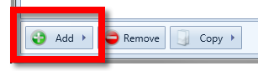
- Select "Add Payment Source".
- Select the payment source.
- Click Select.
The payment source will be added to the rule set list, and you can configure the rule set for this payment source.
Add a payer
- Click Add.
- Select "Add Payer".
- Select the payment source criteria from the Payment Source drop-down menu.
- Select the payer.
- Click Select.
The payer will be added to the rule set list, and you can configure the rule set for this payer.
Remove a payment source or payer
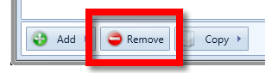
Select the payment source or payer from the list, and then click Remove.
Adding Rules
Keep in mind as you add rules that they are executed in the order shown. You can rearrange the order as desired.
Add rules to a rule set:
- Next to the plus sign, select a group.
- Select a reason code.
- Select a handling action. Selecting the Ask handling action will allow you to handle these adjustments manually. ERA Adjustment Handling Rules for more information.
- If applicable, select a handling reason. (Only the Write Off handling action will trigger the Handling Reason drop-down list.)
- Continue adding rules until your set is complete.
- Click Save.
Delete a rule in a set
- Click the rule number and press DELETE on your keyboard.
- To rearrange the rules in a set:
- Click the rule number, and then click one of the buttons below the rules.

Copying Rules
You can save time by copying rule sets you've already configured. You can add the copied rules to existing payment sources or payers, OR you can add a new payment source or payer at the time of copying.
Copy the rules in a rule set
- Select the rule set in the rule set list.
- Click Copy.
- Select one of the following options:
Copy To Existing Set - Select an existing payment source or payer to copy to, and then click Select.
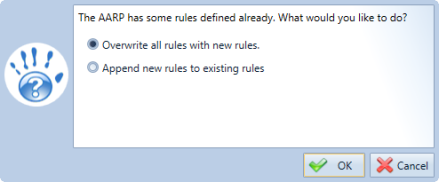
If you copy to a set that already has rules, you will need to confirm whether you want to overwrite all rules or append the new rules to the existing rules.
Copy To New Payment Source - Select the payment source in the list, and then click Select.
Copy To New Payer - Select the payment source criteria, and then select the payer. Then click Select.
The rules will be copied to the chosen payment source or payer.
Testing Rules
Using the Test button, you can test the rules you have created.
- Click Test.
- Select a payer, adjustment category, and adjustment reason.
- Click Test. Results appears in the "Rule that handles this Adjustment" section.
- To view the rule set that handles that adjustment, click View Rule.
Importing and Exporting Rules
You can import and export rule sets for a single payer or payment source as XML files.
Export a rule set
- Select the rule set.
- Click Export.
- Type a name for the file.
- Click Save.
Import a rule set
- Select the rule set.
- Click Import.
- Select the XML file.
- Click Open.
Resolving ERA Errors
If you are using the Ask handling action for any of your rules, ChiroTouch will handle the applicable adjustments by displaying errors in the ERA that must be resolved manually.
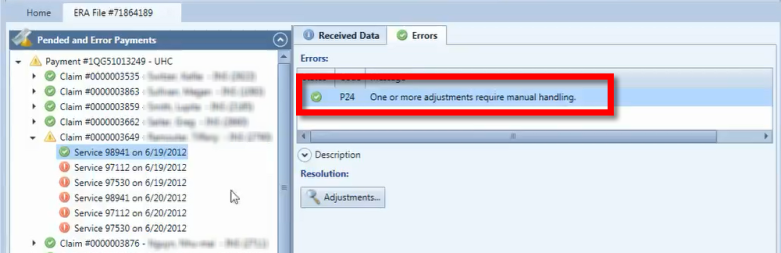
Click Adjustments to specify how you want ChiroTouch to handle the adjustment.
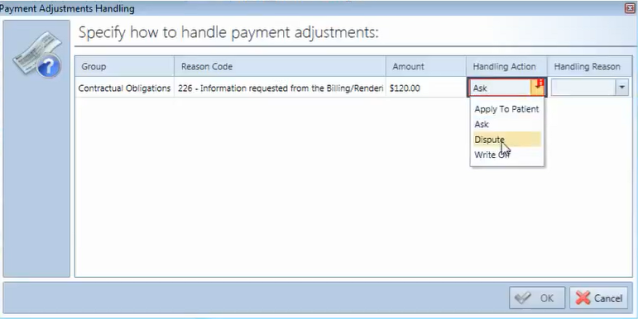
Specify the handling action and reason, if applicable, and click OK.