Patient Statements Options
The Patient Statements Options contain various options for printing and entering statement messages. Begin by launching the Accounting app from CT Launcher.
 View the Patient Statements Options
 Click the Setup tab in the Accounting ribbon when viewing the Statements Management screen. From this menu, you can set your default printer or edit the message that appears on your printed patient statements.
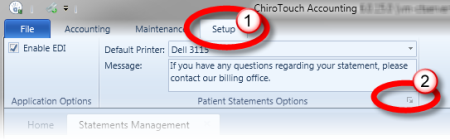
 To view more options, click the arrow in the lower-right corner of the Patient Statements Options section. The Patient Statements Options dialog box appears.
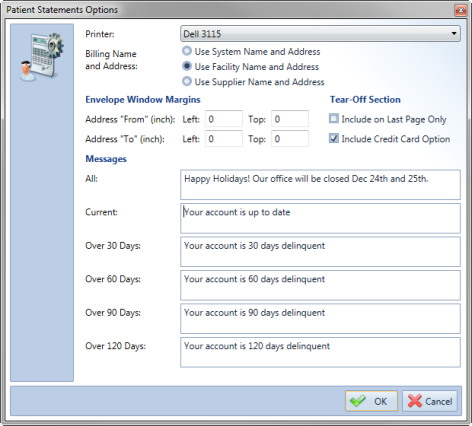

- Printer Options - Select a default printer for printing patient statements.
- Billing Name and Address - Select the billing name and address to print on patient statements: system, facility, or supplier name and address.
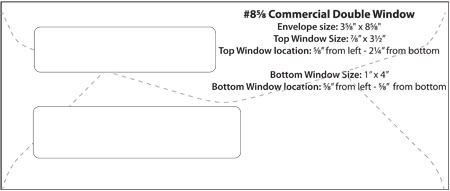
- Envelope Window Margins - Configure your envelope window margins in this section. This setting works for all statement types. Patient Statements Options.
- Remainder Statement Options - Configure your remainder statement options in this section. You can select to include pending charges.
- Tear-Off Section - Choose your options for the tear-off section of the statements. You can include the tear-off on the last page only, and you can include a credit card option as well.
- Messages - Type the messages you wish to print on patient statements. You can enter a message to print on all patient statements regardless of account status. You can also set different messages to print on statements for accounts that are current, over 30 days, over 60 days, over 90 days, and over 120 days. If you do not wish to print a message, delete the text from the text field.
When finished setting your patient statements options, click OK to save your changes.
Envelope Window Margins
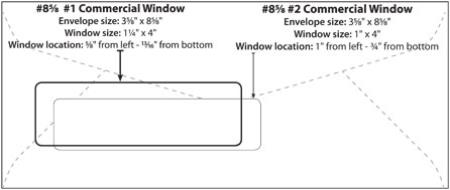
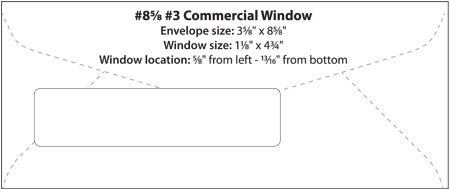
Use the following guidelines to configure your envelope window margins for all Statements.
| Envelope | "From" Address | "To" Address | ||
| Left | Top | Left | Top | |
|
0.75 | 0 | 0.75 | 1.75 |
| 1.25 | 0 | 1.25 | 2 | |
|
1 | 0 | 1 | 1.9 |
|
1 | 0.6 | 1 | 2.15 |