Appointment Reminders Status Review and Reporting
Through ChiroTouch you can generate a report that shows you which patients are set up to receive text or e-mail reminders for their future appointments, and who still needs appointment reminders assigned.
- Log into the ChiroTouch Front Desk application.
- Click the Billing/Statements/Reports button.
- Select the Reports tab.
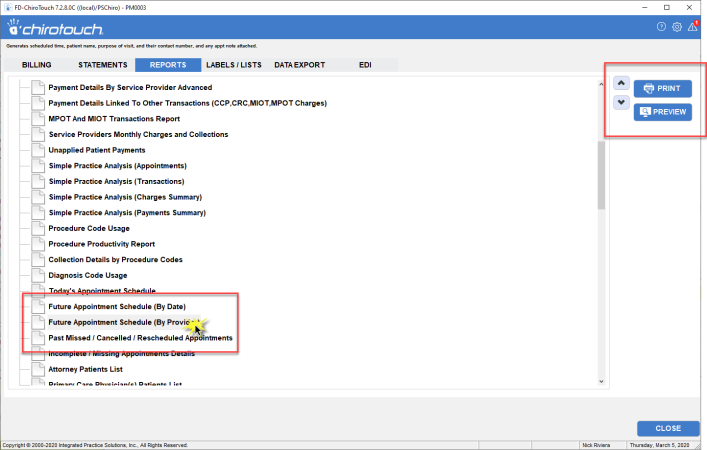
- Select the Future Appointment Schedule report. There are two of these reports available: by date or by provider. Select the report that works best for you.
- Click the Print button to print this report, or Preview button to preview the report on your screen.
- Select a start date and end date for this report and click the Next button.
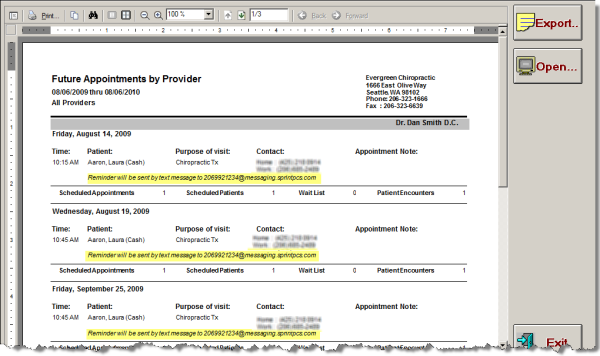
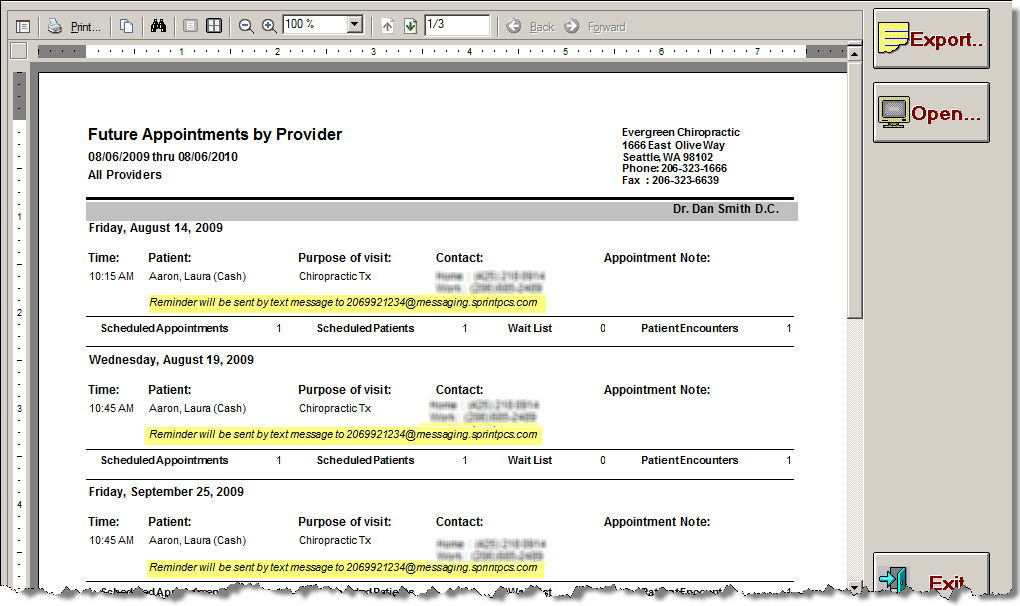
- On the generated report, you can view which patients currently have appointment reminders, and which patients do not.
CTReminders Status Screen
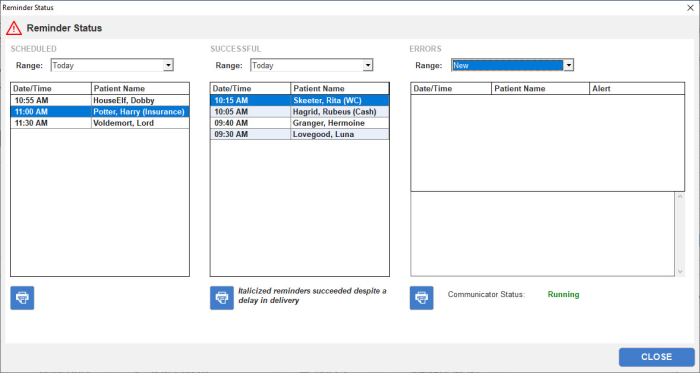
CTReminders subscribers can now review a convenient dashboard that displays the status of each reminder scheduled to be sent to patients. The three columns included in this Reminder Status screen display the reminders scheduled, reminders that were sent successfully, and any reminders that were not sent. Error information includes the reason for the error, and--if available--how to remedy the issue.
- Filter the Scheduled and Successful columns by today, yesterday, or next/last week, and the Errors column by new vs. all errors.
- If your CTCommunicator has stopped for any reason, restart it from this screen by clicking the Start button.
- Review each successful reminder that was sent with a date/time stamp and patient name.
- If a reminder was sent successfully but was delayed more than 30 minutes, it will show as italicized in the list.
- In the Errors column, select unread, or "New" errors, or All errors as a filter.
- Each error will have an associated description to help you understand and remedy the issue.
To check the status of all reminders scheduled to be sent during the last 48 hours:
- Log into Front Desk.
- Click Reminders at the bottom of the screen.

- Select a date range above each column to filter the lists below.