Sending Your CT Reminders
Once you set up your templates they can be used in your ChiroTouch application to send appointment reminders.
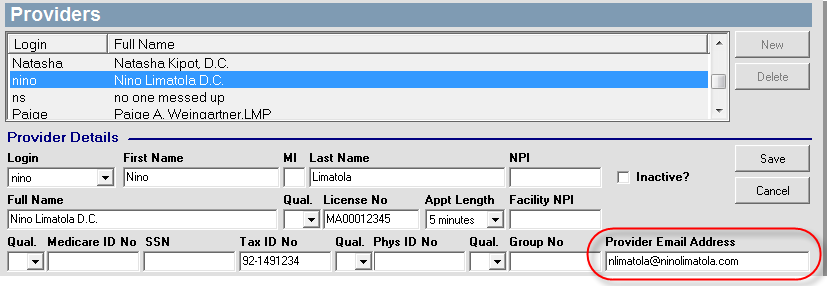
In order to send appointment reminders, each provider must have their e-mail address on file within the system in order to supply the system with a return address for outgoing communications.
To enter an e-mail address for each provider:
- Log into the ChiroTouch Maintenance application.
- Click Providers.
- Select each provider and enter their e-mail address in the field provided.
To send an appointment reminder:
- Log in to ChiroTouch and open the Front Desk application.
- Click the Patient Mgmt. button and select a patient from the list.
- Click the Pat. Info button.
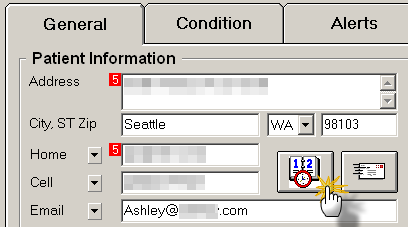
- On the General tab of this patient information screen, click the appointment icon.
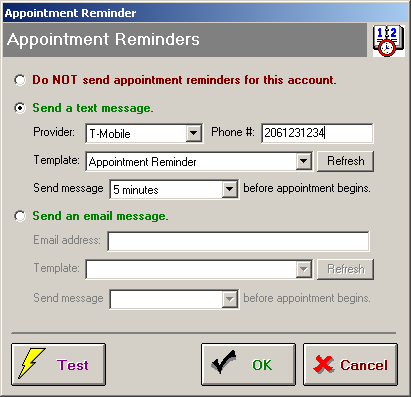
- Select either the Send a text message or the Send an email message radio button.
- To send a text message:
- Select the patient's cellular provider from the Provider drop-down menu.
- Enter your patient's 10 digit cellular phone number in the field provided. Do not include brackets or hyphens in the phone number. You only need to enter numbers in this field.
- Select a template from the Template drop-down menu. If you do not see your template in the list, click the Refresh button to update this list with your latest templates.
- Select when to send this message. Choose to send your message anywhere from five minutes to one week before the patient's scheduled appointment.
- To send an e-mail message:
- Enter the patient's e-mail address in the field provided.
- Select a template from the Template drop-down menu. If you do not see your template in the list, click the Refresh button to update this list with your latest templates.
- Select when to send this message. You may select to send your text message anywhere from five minutes to one week before the patient's scheduled appointment.
- To send a text message:
You can test your message by clicking the Test button.
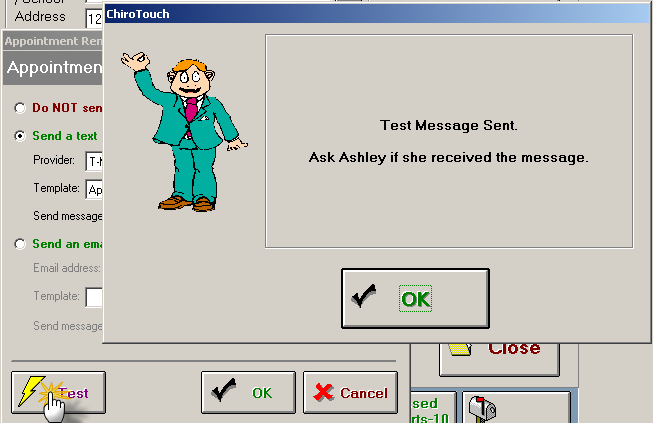
The test message will be sent to the patient. It may take a couple minutes for this message to reach your patient. Ask your patient if they received the message to ensure that subsequent messages will reach them.
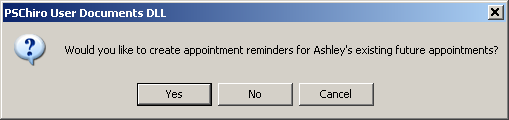
Once you have set up your reminder and clicked the OK button, ChiroTouch will ask you to confirm that you would like to send out this reminder for all of the patient's existing future appointments. If you click the Yes button, a reminder will be sent out for all of the patient's existing future appointments, as well as any new appointments you schedule for this patient.