Linked Accounts
If patient accounts are linked for self check-in, their names will be shown on a subsequent screen, regardless of whether or not they all have appointments. Linked account names appears after the patient uses a sign-in method successfully, and the patient has linked accounts.
Only linked accounts that are enabled for self check-in will be shown on this screen.
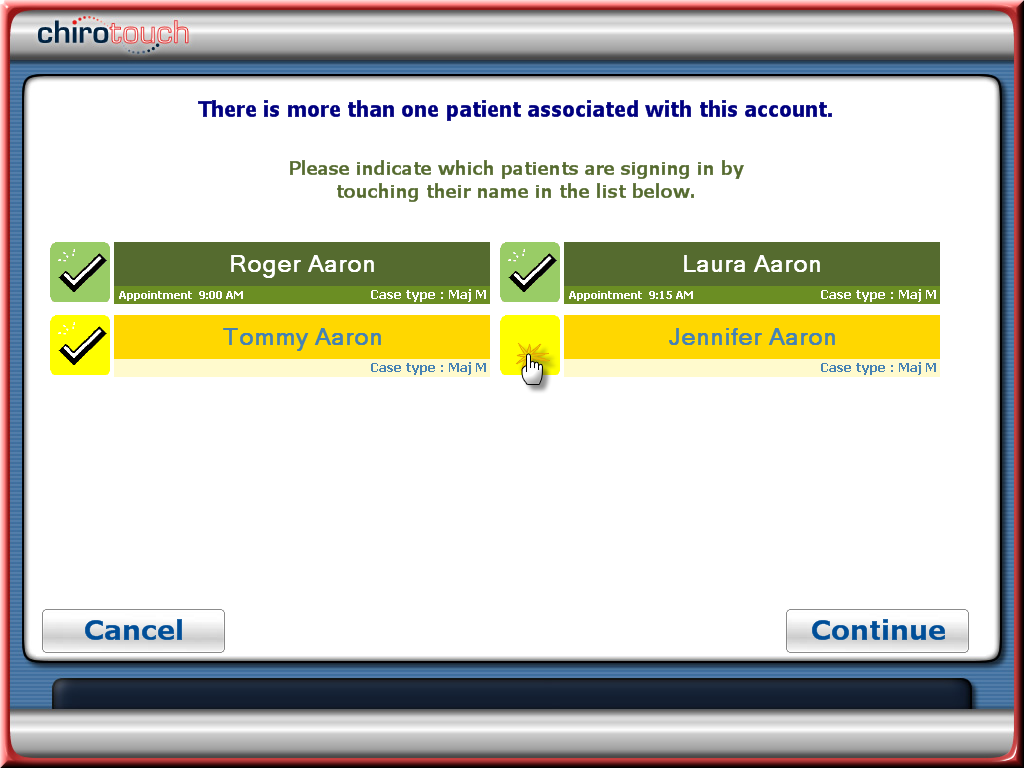
The display boxes contain the patient’s name and case types. Patients who have scheduled appointments will be noted with the time of the appointment. Walk-in patients will be noted with the time of their arrival. A green color box indicates patients who have a scheduled appointment and a yellow color indicates no appointment, even for walk-ins.
NOTE:
If all patients are selected, and if you have selected to allow walk-ins, the system will assign the walk-in appointment purpose to all patients without a current appointment.
This screen appears because it recognizes that there is more than one patient associated with the primary patient’s account; in other words, it notices that there are linked accounts. This screen asks the patient to select the name(s) of the patient(s) who are currently signing in. The patient will touch the box to the left of each name to indicate patients who are signing in. Each selection is check marked. The patient will then touch the Continue button to proceed or touch the Cancel button to cancel sign-in and start over.