CT Voice Recorder Overview
Double-click the CT Voice Recorder desktop icon to launch the program. Enter your username and password to log in.
NOTE:
You must have an input device (e.g. a microphone) connected to your computer in order to initialize the CT Voice Recorder application. If you do not have a recording device, an error message is displayed, preventing CT Voice Recorder from initializing.
The CT Voice Recorder has two main areas:
- Left area for display functions
- Right area for recording functions
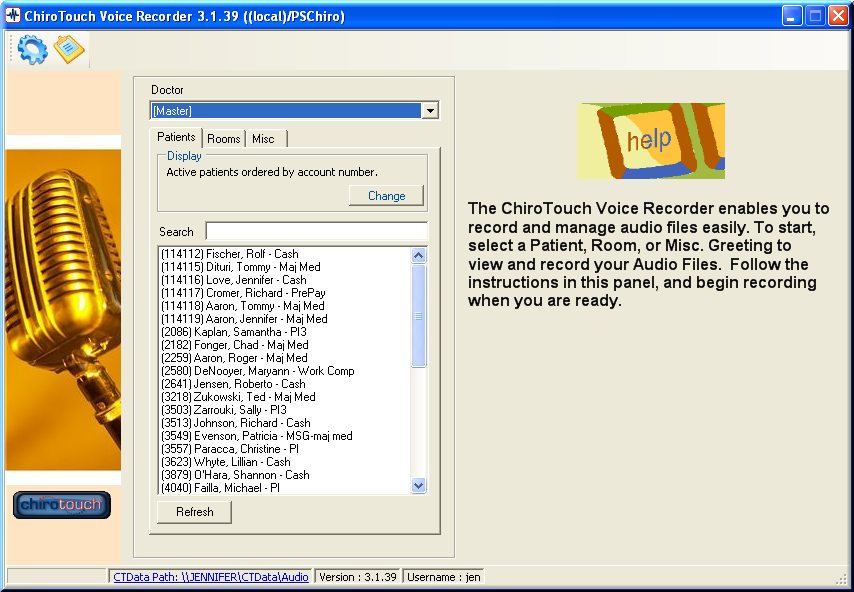
The left area of the screen displays the list of patient names, office rooms, and miscellaneous greetings. It also contains a drop-down menu for you to select a voice profile. The list of recorded names, rooms and miscellaneous greetings may change according to the selected voice profile and display settings.
The right area of the screen displays the audio recorder functions. Based on how you display your lists, and whether you are in the process of creating or reviewing a recording, this view may change. When you first open CT Voice Recorder, this area displays text to get you started. When you use any of the display functions in the left area, this right area will then display recording functions.
In the upper left corner, a blue cog wheel and yellow clipboard are links to adjust settings and view an audio file summary.