Bluefin Credit Card Processing
You can process payments directly within ChiroTouch using Bluefin payment systems.
 Welcome Emails
Once you have signed up for the Bluefin service and your account has been processed, you will receive two e-mails:
First Welcome E-mail
The first welcome e-mail is from sender “noreply@bluefin.com” with the subject “Welcome to Bluefin Payment Systems”. This e-mail contains your Bluefin account ID as well as information about the Bluefin payment system, FAQs, customer support information, and more.
Second Welcome E-mail
The second welcome e-mail is from sender “noreply@bluefin.com” with the subject “A new PayConex account has been created for you”. This e-mail contains your username and password, and it will arrive 1-2 days after the initial Welcome email.
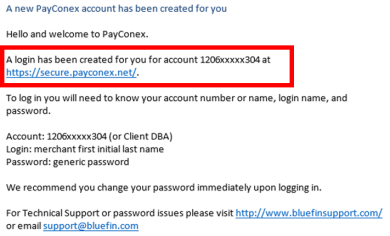
Use this information and click Sign In to sign in to your secure connection.
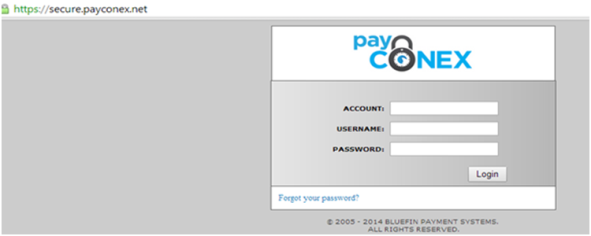
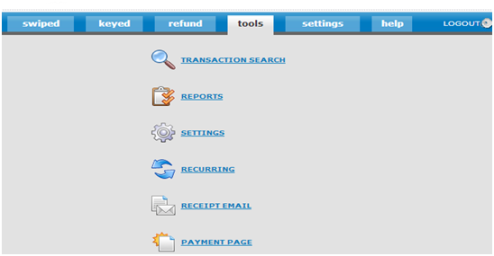
After successful login to the Bluefin PayConex portal, go to the Tools page.
From this page you can search your transactions, generate reports (such as transaction history and search, daily card totals, and event log) manage recurring charges, set your receipt e-mail, or adjust your payment page.
Accessing Your API Keys
To access your API keys:
- In the PayConex portal, go to the Settings tab.
-
Click Manage Settings.
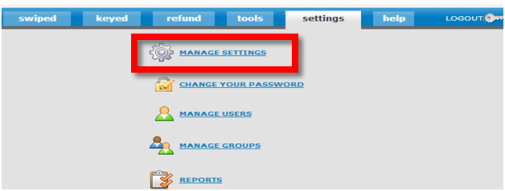
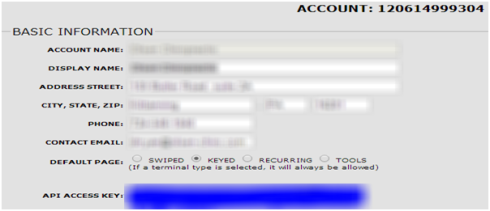
You will find the API access keys within the Basic Information on the Manage Settings screen. You will use these keys in the next step to link ChiroTouch to your merchant account.
Linking Your Merchant Account to ChiroTouch
To link your merchant account to ChiroTouch:
- Log in to ChiroTouch Maintenance.
- Click Options.
- Under Merchant Services, select "Enable merchant services".
- Click Setup.
-
Copy your Account ID from the initial Welcome Email and the Access Key from the secure PayConex Manage Settings screen. Paste these IDs into the Account ID and Access Key fields.
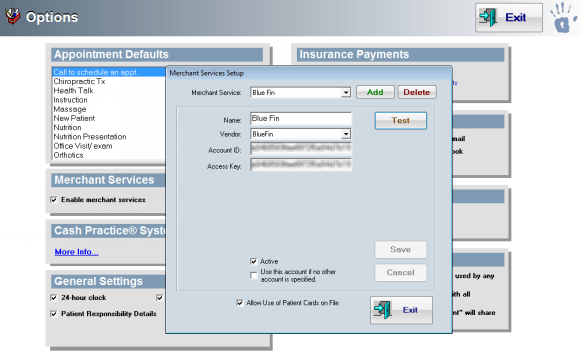
You have the option to automatically save patient card information upon swipe. Select "Allow Use of Patient Cards on File" if you want to enable this option. If this checkbox is selected, you will have the option to “Use Existing Card” upon future transactions, allowing for a faster transaction process with recurrent patients.
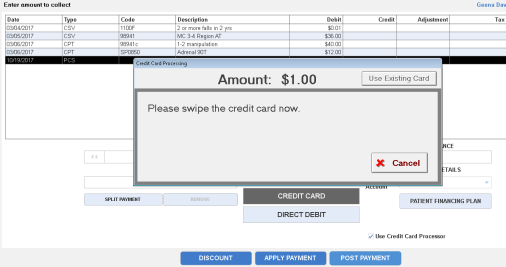
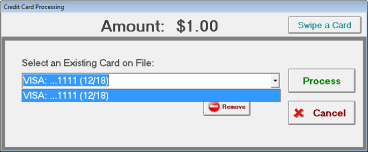
If there is more than one card on file, you may select from a list of existing cards on file for that patient. Select the card you would like to use from the list, and then click Process.
After processing you can print a receipt for the patient.
Setting up Multiple Bluefin Accounts
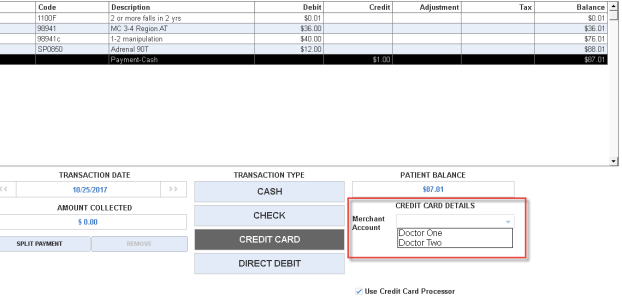
If you would like to set up multiple Bluefin accounts, you must assign them different names in the ChiroTouch Maintenance > Options > Merchant Services Setup screen. For example, DoctorOneBluefin and DoctorTwoBluefin.
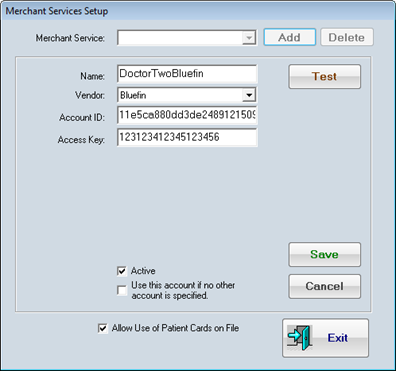
When posting payments, simply select the desired Bluefin account from the Merchant Account drop-down list.
Manually Entering a Card
To manually enter a card:
-
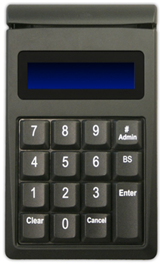
On your card reader, press the “# Admin” key in the upper-right corner.
-
Select a number between 1 and 6 that corresponds with the information you will be entering. To achieve the lowest rates, we suggest swiping the card if at all possible. If you do not have a physical card and you have the information necessary for configuration #5, choose this option. (This configuration includes the majority of the information and best reduces the risk of fraud). These numbers correspond with the following information.
Configuration #1: Card Number, Expiration Date
Configuration #2: Card Number, Expiration Date, Zip Code
Configuration #3: Card Number, Expiration Date, Street Number of the Address, Zip Code
Configuration #4: Card Number, Expiration Date, Zip Code, Security Code
Configuration #5: Card Number, Expiration Date, Address, Zip Code, Security Code
Configuration #6: Card Number, Expiration Date, Address, Security Code
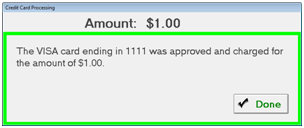
If the card swiped was approved, you will see the following:
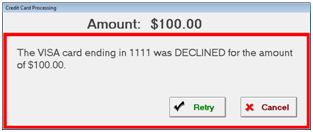
If the card swiped was denied, you will see the following:
Refunds
To refund a transaction:
- Open ChiroTouch Front Desk.
- Click Patient Mgmt.
- Click Ledger.
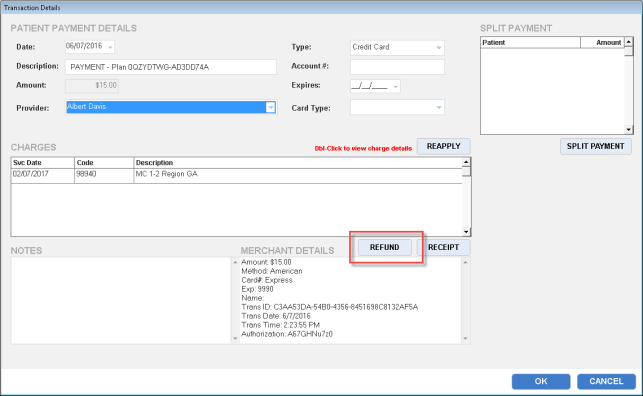
- Double-click the transaction you wish to refund.
-
Click Refund.
NOTE:
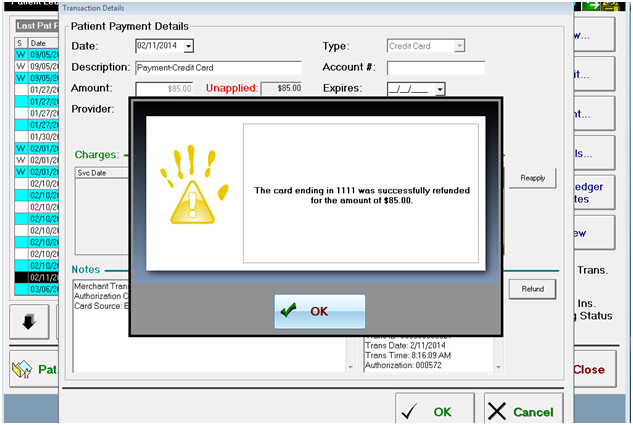
The default refund date will be today's date.The status of the refund will be displayed, and the ledger will be credited the refund amount.
Processing a Payment Using an Existing Card on File
Your patient’s cardholder data is encrypted and securely retained, allowing you to access the credit card data on file and apply a payment directly to the patient’s ledger.
To process a transaction using a credit card on file:
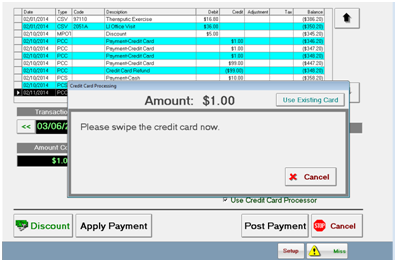
- Click Post Payment.
-
Click Use Existing Card.
-
Select an existing credit card from the drop-down menu of cards on file for this client.
Bluefin Support
If you encounter issues with your service unrelated to the ChiroTouch software, please contact Bluefin support at:
E-mail: service@bluefin.com
Phone: 1-800-675-6573, ext 4