Interoffice Messages
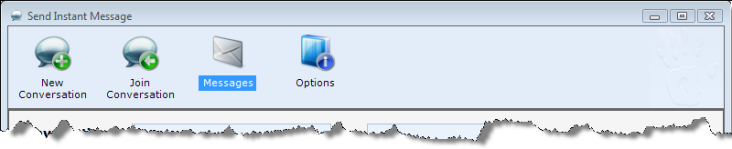
The interoffice messaging system can be accessed through the Conversations dialog box. Click the Conversations button on the ChiroTouch Launcher, then click the Messages button to bring up your ChiroTouch message box.
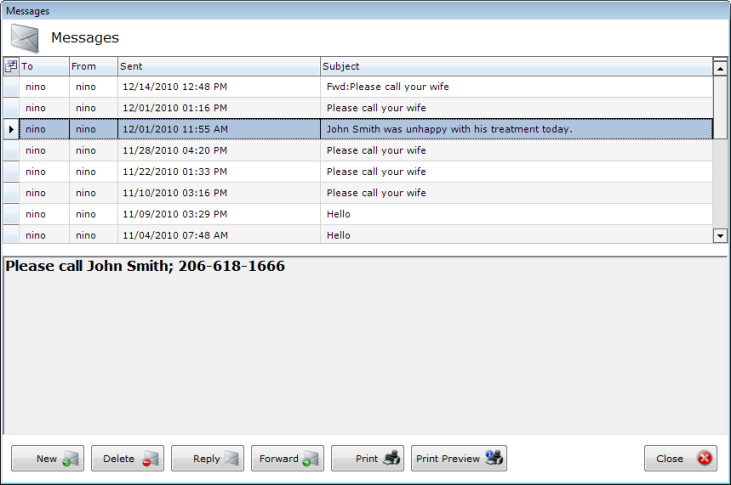
No user may view another user’s messages, and only those messages sent to your mailbox are shown.
- Scroll though your list of messages using the scroll bar on the right.
- The date and time is shown, so you know exactly when someone sent you a message.
- Click any message, and the entire text is shown in the lower portion of the dialog box.
- You can create a new message, delete a message, reply to or forward a message, or print or preview a message.
Send a message
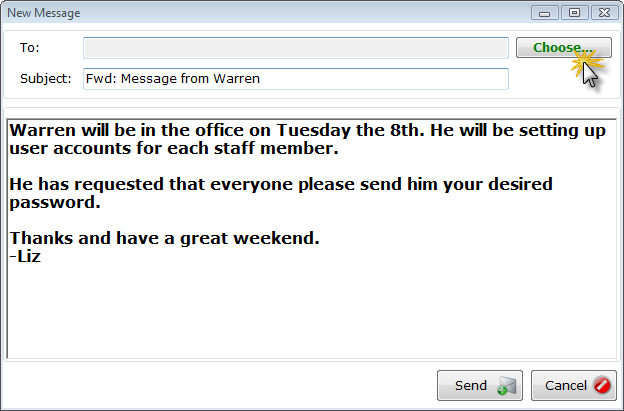
- Click the New button to compose a new message. When replying to and forwarding messages, you must first select a message, then click the Reply or Forward button. A New Message dialog box appears.
- Click the Choose button to select your recipients.
- To add a recipient to the message, check the box for a name or department. The name or department is added to the bottom list of selected recipients. Click the OK button to add your selected recipients. To remove a recipient from the message, de-select the appropriate checkboxes in the list of selected recipients, then click the OK button.
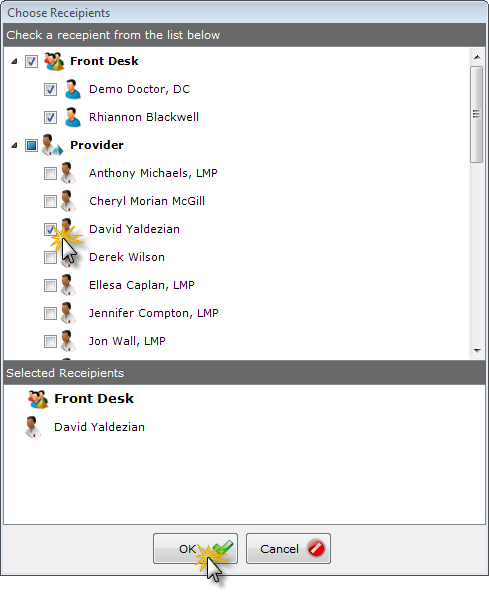
- Click the “OK” button to exit this box and return to your message.
- Type any additional notes, if necessary, and click the “Send” button.
Print your message
- Click the Print button.
- At the prompt, choose whether to send the message directly to your installed printer or preview the message.
- The previewed message is displayed on your main screen in a separate viewing window.
- You may print the message from the previewed document, as well as export the message in one of three formats.