Patient Management
The Patient Management screen provides access to the patient’s entire medical record. This screen has many options that allow you to view patient info, diagnoses, appointments, ledger, insurance information, and records. This screen can be accessed through the Patient Flow screen.
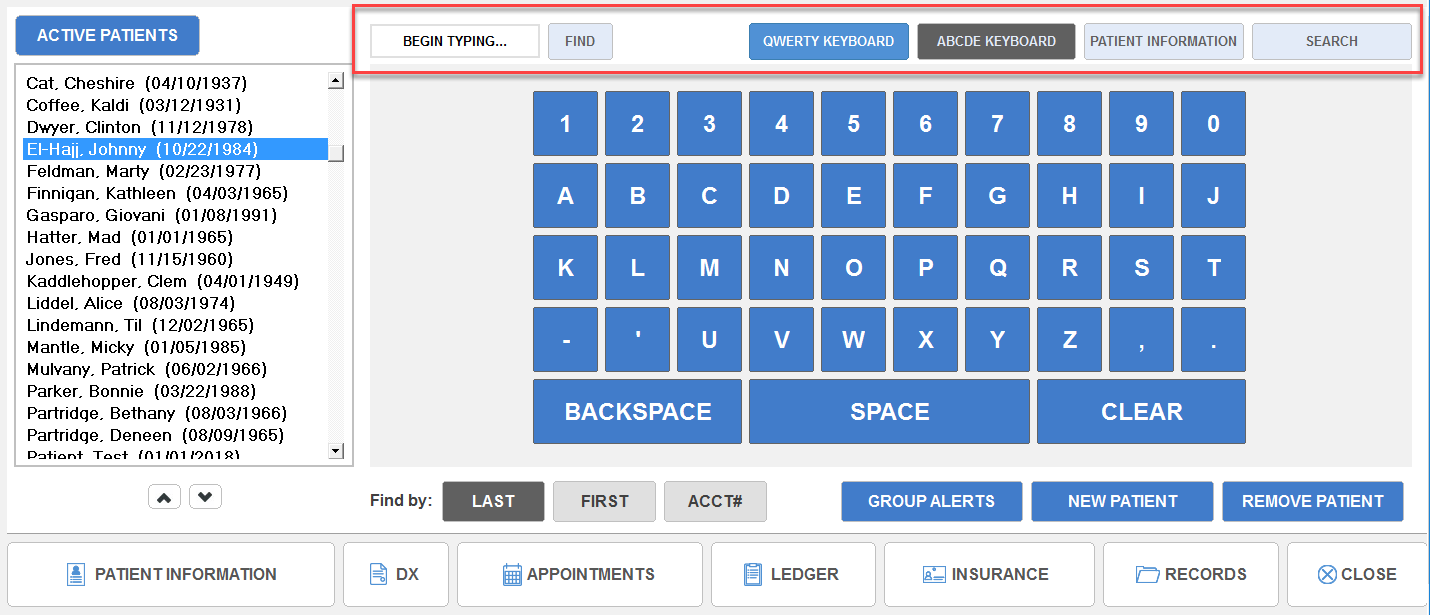
You have the option to set up the on-screen keyboard in either ABCDEF fashion, or in standard computer QWERTY fashion. Choose whichever layout is more comfortable for you. If you would like to see the patient’s information displayed instead of the on-screen keyboard, click the Patient Information button in the upper right-hand corner of the screen. You can also search for your patients by phone number or other identifier by clicking the Search button.
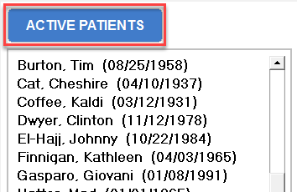
Clicking the button above the patient list toggles between active, inactive, or all patients.
Search for an existing patient
Search for an existing patient by either their name or their account number. Click the appropriate button in the Find by area at the bottom of the screen to choose whether you would like to find your patient by their name or account number.

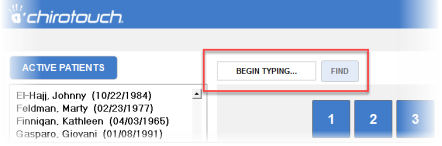
The search phrase you type will appear in the "Begin Typing" text box at the top of the page. Your search begins immediately, as you type.
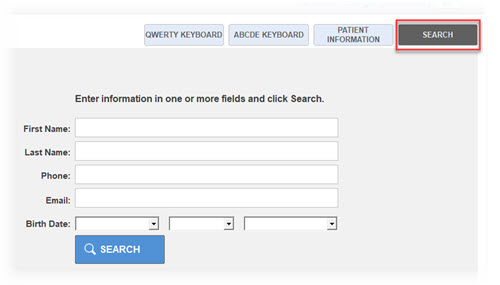
Use the SEARCH button to search your patient list by
-
First Name
-
Last Name
-
Phone
-
Email
-
Date of Birth
 Related Topics