Remove a Patient from Today’s Appointments
To remove a patient from Today’s Appointments, select the patient’s name from the list and click the Remove button. A confirmation dialog box appears.
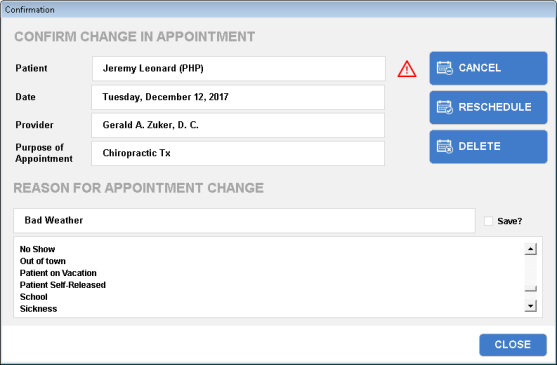
You have three options for removing the patient:
Cancel Appt
To cancel or reschedule an appointment, you must specify a reason for the change. To cancel this appointment and mark it on this patient’s calendar as canceled, select a reason for the cancellation from the list, and click the Cancel Appt button.
Reschedule
To reschedule this appointment and mark it on this patient’s calendar as rescheduled, click the Reschedule button.
When rescheduling, a calendar appears. Use the left and right arrows at the top of the screen to change the month or year in which you would like to select a new appointment date.
The original appointment that you are rescheduling is shown in blue font.
To select a date, click the date on the calendar. This day highlights in pink. 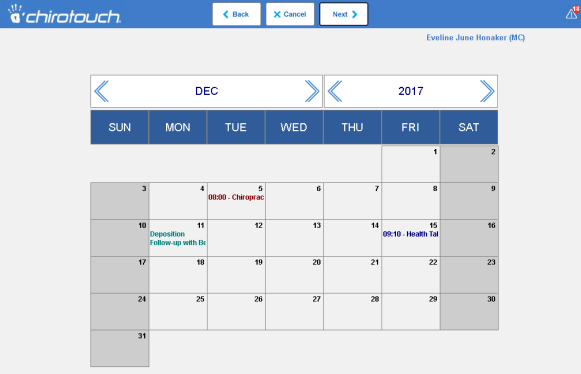
Click the Next button to continue rescheduling this appointment.
Delete Appt
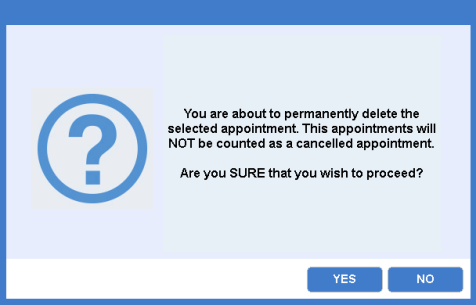
To delete this appointment from all records, click the Delete Appt button. A dialog box appears to verify the deletion. Click the Yes button to delete the appointments.