Setting Up COREscore 2.0 in ChiroTouch
Setting Up COREscore 2.0
To set up CLA (CoreScore) in ChiroTouch:
- Open Front Desk.
- Click Patient Management.
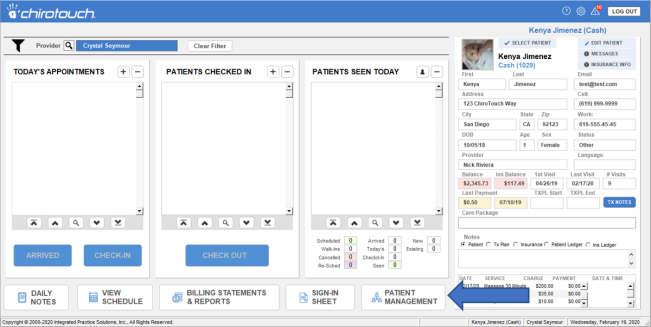
- Choose a patient.
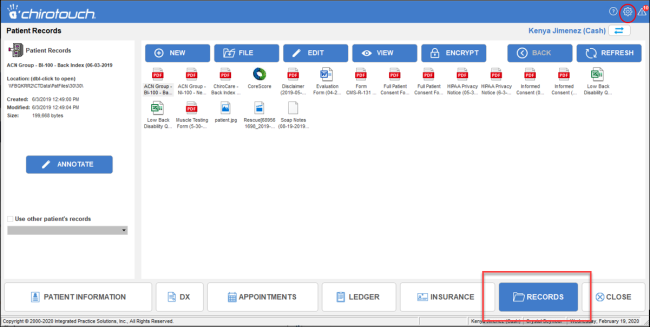
- Go to Records.
- Go to Settings.
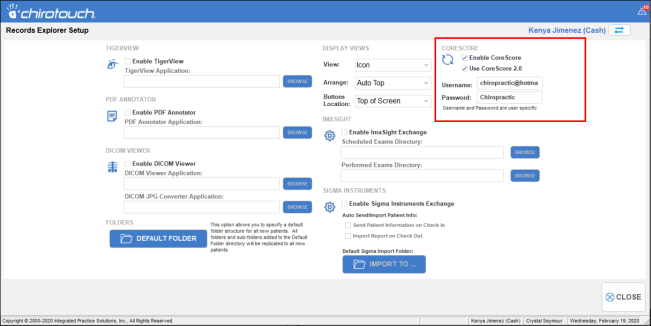
- Enable COREscore.
- Add the username and password.
Importing Scans into ChiroTouch
To import the Scans into ChiroTouch, we need to follow the steps below:
- Open the patient's Records.
- Go to New, then File.
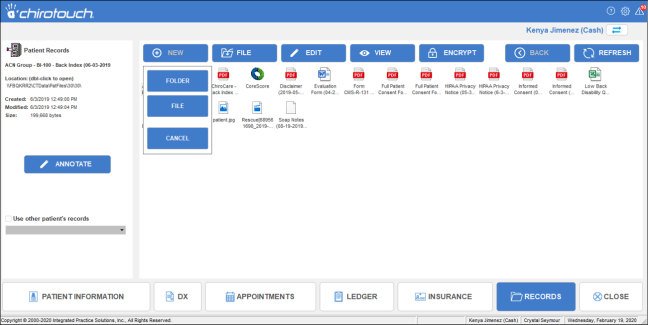
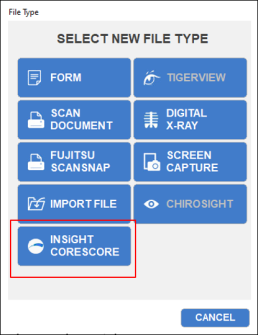
- Select "INSiGHT CORESCORE" File Type.
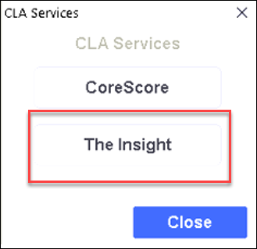
- Choose "The Insight".
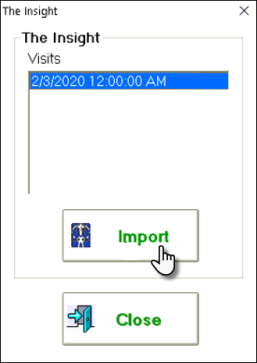
- Choose the date of visit.
- Click Import.
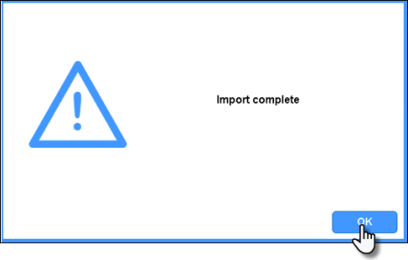
- An import complete pop up will come up – Click OK.
- An Insight folder with the date will be created under patients’ records.
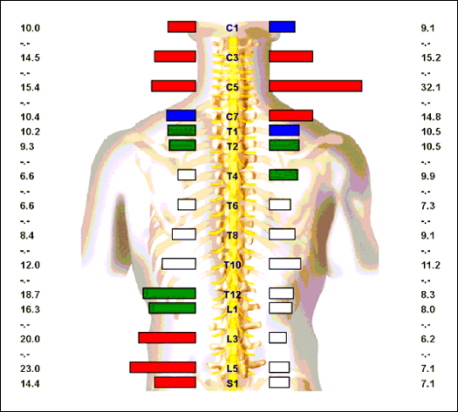
- You can click on the file to view the image.
Adding Scans to Provider All-In-One
To add a scan to the Images section:
- In the Images section of the All-In-One screen, click Images.
- Select Select Image.

- Select the scan.
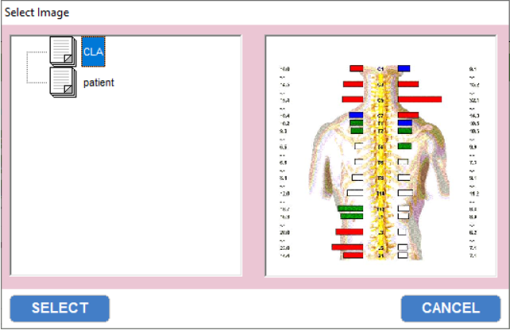
- Click Select. The scan will be added to the Images section.

.