Meaningful Use (EHR) Dashboard
The Meaningful Use Dashboard (also known as the EHR Dashboard) displays your progress for each meaningful use measure throughout the duration of your reporting period.
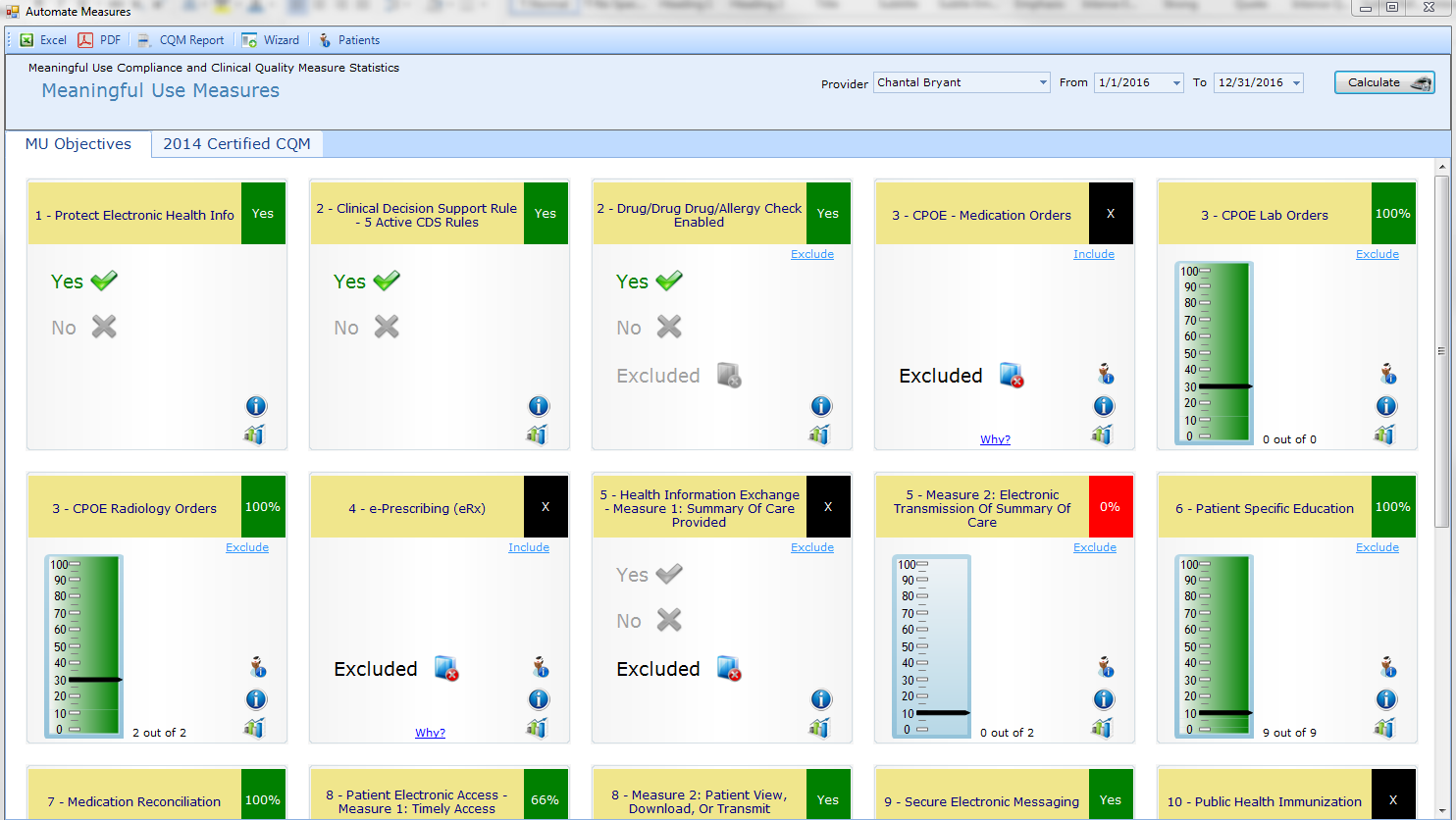
Any ChiroTouch user can include the Meaningful Use Dashboard on their launcher view. Users with staff accounts will be able to view each provider’s dashboard but cannot exclude measures or save the reporting period date range: Provider accounts will only be able to see their individual dashboard, and can exclude measures and save the reporting period date range:
 Configuring the Dashboard
To include the dashboard on your Launcher:
- Right-click the Launcher button and select Options.

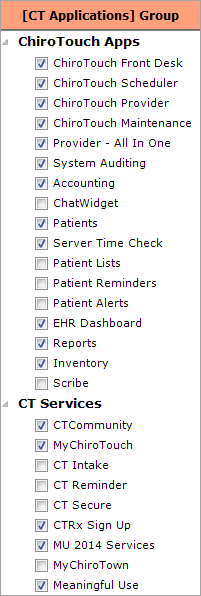
- Make sure the following applications and services are selected:
- EHR Dashboard
- Patients
- System Auditing
- CTRx Signup
- Meaningful Use
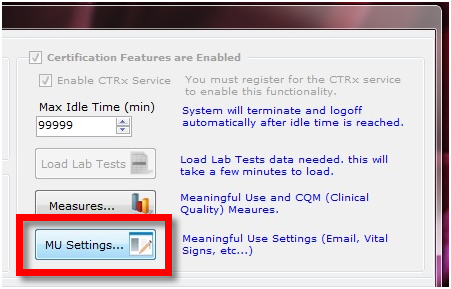
- Each provider will also need to log in and indicate which stage of EHR the dashboard should display. To access this setting from the Options menu, click MU Settings.
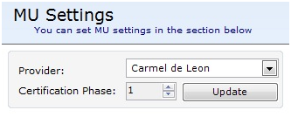
- Each provider will need to select the Stage of EHR they are reporting for this year and click Update.
- N O T E
Only providers with active CTRx accounts will be available in the drop-down menu.
Dashboard Overview
Your meaningful use dashboard contains two tabs.
- Objectives: Displays the compliance status of each objective and sub-measure. You must complete all 10 objectives.
- CQM: Displays the status of each of the nine clinical quality measures (CQMs) tracked within your system. There is no threshold that needs to be met for these clinical quality measures. For more on the CQMs, view the CQM Online Help topic.
The dashboard displays your current compliance with each meaningful use measure.
If you are excluding a measure (such as CPOE for Medication Orders), simply click Exclude in the upper-right corner of that measure box. A reason for the exclusion is auto-populated in the text box for your convenience. Remember that you can only exclude measures if you are logged in as a provider.
Each objective has three information buttons in the lower right corner. Use these links for reference when seeking additional information about each objective and sub-measure.

|
The upper icon pulls up a list of patients for each objective. It will show patients that are compliant (have met criteria) and not compliant (have not met criteria). |

|
The middle icon links to the CMS page for that specific objective information. |

|
The lower icon links to topics in this online help resource for instructions on completing that specific objective. |