Rheo AI Scribe
Quick Summary: Introduced in Version 7.2.14.6 October 2025, Rheo AI Scribe helps eliminate repetitive tasks, automate documentation, and reduce admin time—so you can focus more on patient care. It’s embedded for all ChiroTouch subscription customers and Legacy clients with active Maintenance and Support located in the USA and its territories. Effortless to use, actively improving, and built with input from real chiropractors.
What is Rheo AI Scribe? Your built-in AI assistant—designed by chiropractors, powered by a robust chiropractic dataset, and fully integrated into ChiroTouch
- Eliminate repetitive tasks and busywork.
- Automate documentation and clean summaries right into your SOAP note
- Cut time spent on admin, improve efficiency, and keep the focus on patients.
Why you’ll love it: Embedded for all ChiroTouch subscription customers and Legacy clients with active Maintenance and Support located in the USA and its territories· Effortless to use · Actively learning · Built by experts.
Note: AI-generated content may be incorrect. Always review notes and codes before finalizing.
 Creating Rheo AI Scribe account
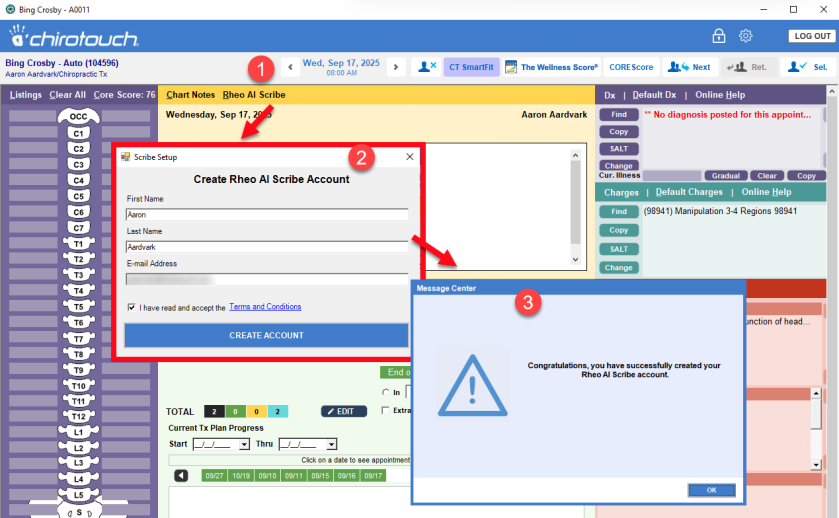
Creating an account is easy. Select a Patient in Provider All-In-One.
- Click on the Rheo AI Scribe button
- Name and Email Address will prepopulate based on information in Maintenance > Provider. If email is missing, enter your email.
- Acknowledge the Terms and Condtions
- Select Create Account
- Subsequent use of Rheo AI Scribe will not require registration or signing in.
Document with Rheo ai scribe
AI Scribe captures your natural conversation and produces a structured SOAP note. It’s the fastest way to chart with accuracy and consistency.Recording can be done either as a summary from the doctor or a question/response between the doctor and patient.
How to use AI Scribe
- Select patient in Provider All-In-One
- Click Rheo AI Scribe button at top of chart note section.
- Obtain patient consent to being recorded -Acknowledge Patient Consent to being recorded
- Start a recording - Click Record Session, then tap the microphone to begin. Speak naturally—Rheo AI Scribe listens passively.
- Finish & format - Stop recording and choose a SOAP template to structure the draft. Edits to chart notes can be made now or after saving.
- Sync to Chart Notes - Click Sync to Chart Notes to send the draft to the SOAP note.
- Review & Save - Scan for accuracy. Open the chart note and edit any section, then click Save Notes.
Tip: For best results, reduce background noise, speak near the mic, and avoid talking over the patient. A simple tabletop conference mic works great for exam rooms.
Reminder: AI-generated content may be incorrect. Always verify clinical details before saving.
Rheo ai scribe Microphones
Rheo AI Scribe works with built-in microphones on most computers, but upgrading to an external microphone can improve accuracy—especially when using Rheo AI Scribe. Thsee are the recommended microphone types for different environments.
Recommended Microphones
RHEO works with most built‑in microphones. For best accuracy with RHEO Scribe and other voice‑enabled AI features, consider the microphone options below.
Quick Summary: Use your existing mic to get started. For clearer SOAP notes and better transcription, a tabletop conference mic works best in private rooms, while a clip‑on lavalier is ideal for open areas and mobility.
Private Exam / Treatment Rooms
Conference (Tabletop) Mic
- Captures voices from multiple directions
- Set it on a desk or treatment table between provider and patient.
- Example: EMEET Conference Speakerphone M0 Plus (~$60)*
- Place centered in the room to balance pickup and reduce echoes.
Open Adjusting Areas and Portability
Lavalier (Clip-On) Mic.
- Wearable for hands‑free mobility
- Choose an omnidirectional model for consistent pickup.
- Example: GoorDik Wireless Lavalier Microphone 2T1R (~$20)*
- Add a wind muff (the “furry ball”) to reduce noise in busy spaces.
Pro Tip: Keep the microphone 6–12 inches from your mouth. Reduce background noise for the cleanest transcription.
* Prices shown are approximate and may change. Product names are examples only—ChiroTouch does not sell hardware
Audio Setup Checklist
Conference (Tabletop) Mic
- Confirm the correct input is selected in your operating system sound settings.
- Position the mic 6–12 inches from your mouth and face it toward you.
- Make a quick test recording to verify clarity and volume before using Rheo AI Scribe
.