PDF Viewer
From the Documents window, tap a PDF document to view it in the PDF Viewer. The PDF's settings will determine what options you have for filling out forms, viewing bookmarks and outlines, etc.
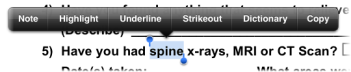
Touch and hold a word to view options for marking the text, adding a note, using the dictionary, or copying a word.
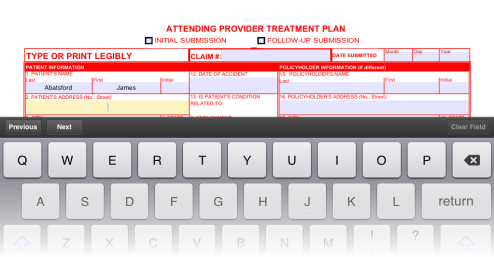
In a PDF form, tap a form field to enter text using the keyboard.
Editing a PDF
Tap  to view the PDF editing tools.

Shapes
You can add colored rectangles, circles, lines, and arrows to the PDF. Tap the color box to select a color to use for the shape.
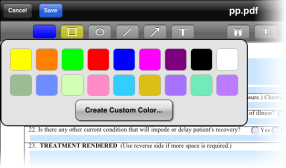
Add a custom color to the palette
- Tap the color box.
- Tap the Create Custom Color button.
- Move the cursor to the color you desire.
- Tap the Choose Color button.
The color will be added to the palette in the bottom row of the color palette. These colors will also be available in the Pen Tool. You can add up to nine custom colors. When you reach the limit and add another custom color, the colors will be replaced from left to right.
Add a shape to the PDF
- Select a shape.
- Drag your finger to draw the shape on the PDF. When you lift your finger, you can resize the shape by dragging any of the red circles.
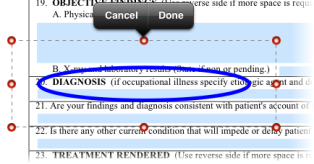
- Tap Done to add the shape, or tap Cancel to start over.
If you wish to edit or delete the shape, tap anywhere on the shape to view options.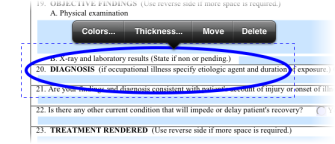
Text Tool
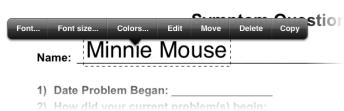
Tap  to add text to the PDF. Then tap the area where you would like to place the text. Type your text, and, when finished, hide the on-screen keyboard or tap another spot on the PDF. If you wish to change the text, tap it to view options for font, font size, or colors. You can also edit, move, delete, or copy the text.
Highlight, Underline, and Strikethrough Effect
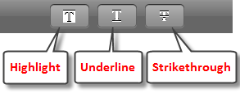
Tap one of these options to highlight, underline, or add strikethrough to text. These options apply to text present in the original PDF form and not to text fields or text that you have added via the text tool.
Drag your finger along text where you wish to add these effects. When you lift your finger, you will be able to tap the effect again to view options to change the color, clear the effect, add a note, or copy the formatted text.
Note Tool
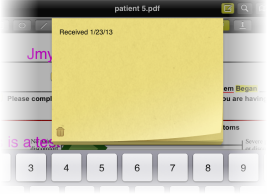
Tap  to add a note. Type your note, and then tap outside of the note to enter it in the PDF. To view or edit the note, tap
  . To delete a note, tap the trash can icon on the note.
Stamp Tool
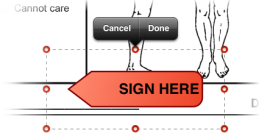
Tap  to add a stamp. You can choose from standard stamps, or you can create custom text and image stamps. Tap a stamp to enter it in the PDF. Drag the stamp to move it, or resize the stamp by dragging the red circles. Tap Done to enter the stamp in the PDF.
Add custom stamps
- Tap Custom.
- Tap
 .
. - Select Text Stamp or Image Stamp.
- Text Stamp - Type the text you wish to appear on the stamp. Then select a color for the stamp text. To enter a date and/or time in the stamp text, tap the On/Off button to display ON next to Date or Time. This will insert the current date or time when you use this stamp in the PDF.
Image Stamp - Tap the directory of the image you wish to use, and then tap the image. Select the resolution.
- Tap the Done button.
Delete a custom stamp
- Tap the Edit button.
- Tap the stamp you wish to remove.
- Tap each stamp you wish to remove. A
 appears on the stamps you've selected.
 - Tap the trash can icon.
Pen Tool
Tap  to use the pen tool. Six customizable pens appears.

Tap a pen to start drawing on the PDF and to view options to change the color, thickness, or opacity.
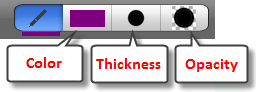
Custom colors are available in both the pen tool and the shapes tools. To create a custom color, PDF Viewer.
Tap the  to use the eraser tool. Drag your finger on a drawing to erase it.
Tap  to enable the wrist guard feature (for use with a stylus).
Edit or delete a drawing
- Close the pen tool by tapping the X symbol.
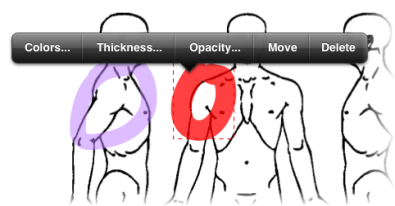
- Touch and hold the drawing you wish to edit or delete. Options appears, and you will be able to change the color, thickness, or opacity as well as move/resize the drawing or delete it.
Quick Edit Tools
Several editing options are available outside of the PDF Editor.
Touch and hold the spot where you wish to edit the PDF. The following options appears:
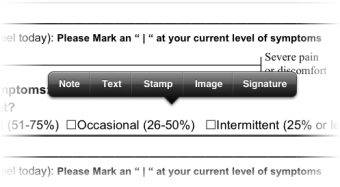
For help with the note, text, or stamp tools, PDF Viewer.
Add an image to the PDF
Tap Image to add an image from the Photo Roll on the iPad.
Add a signature to the PDF
Tap Signature to add a signature. Tap My Signature to add the provider's signature stored on the iPad. Tap Customer Signature to add the customer's signature. The signature created here is a one-time signature that will not be saved for later use.
Search
Tap  to search the PDF. Type your search in the search field, and then tap the Search key on the keyboard. The results appears below the search field. Tap the results to view them. (The words will be highlighted in the PDF document if found.)
Bookmarks
Tap  to view the PDF's bookmarks. If the PDF does not already contain bookmarks, you can add your own page bookmarks. On the page for which you wish to add a bookmark, tap the bookmark icon in the top menu bar. This will add a page bookmark to the list. To edit the bookmarks, tap the Edit button.
Outline
Tap  to view the PDF's outline. The outline, unlike the bookmarks, must be created in the original PDF.
Annotations
Tap  to view a list of the annotations that have been added in the PDF Editor along with a timestamp for each annotation.
Other Options
Tap  to view other options such as printing, opening, and e-mailing the PDF, as well as editing the provider signature saved on the iPad.
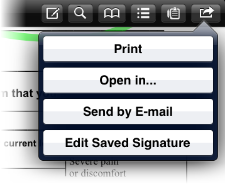
Print - Tap the Print button to view options for printing the PDF.
Open in... - Tap the Open in... button to view all other installed applications, such as iBooks, that can open the PDF.
Send by E-mail - Tap the Send by E-mail button to view options for sending the PDF via e-mail. Select the PDF option to send the PDF with annotations. Select PDF and summary of changes to send the PDF with annotations plus a summary of the annotations in the body of the e-mail.
Edit Saved Signature - Tap the Edit Saved Signature button to edit the provider signature stored on the iPad.
Saving Your Annotations
Tap the Save button to save your annotations. You will still be able to edit the annotations after you save them.