Add, Edit, or Compare Notes as a Scribe
When you as a provider or user is designated as a scribe, you have the ability to create and edit chart notes on their behalf for any patient. See Overview of Scribe for details on how to enable this function.
- Launch the Scribe application.

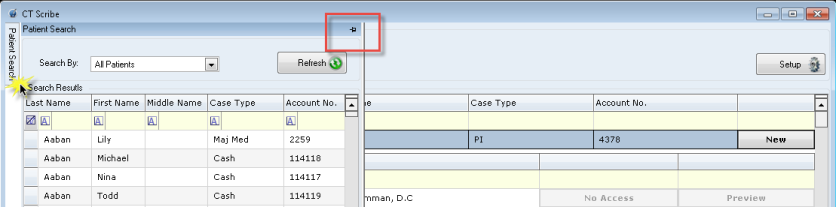
- For ease of use, the provider and user Scribe interfaces are configured slightly differently. For providers, the Patient Search pane is minimized by default, but can be expanded and pinned into place if desired. Here a provider can preview notes, but only edit and sign those which they are given access to. Staff members will see both patient and provider search panels by default.
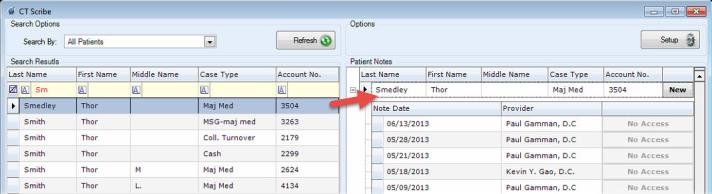
When you have located a patient, double-click their name in the Search Results list on the left to open their record in the Patient Notes section on the right. As a provider, simply select the patient from the Patient Notes list.
 Add a Note as a Scribe
- Click New.
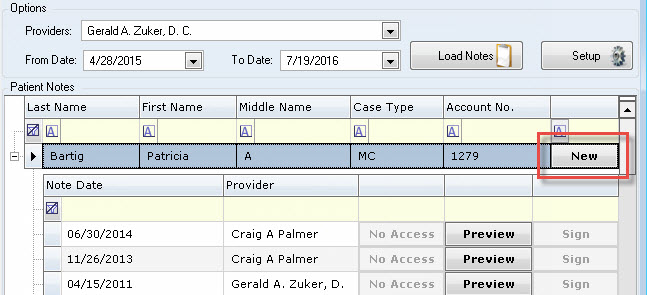
- Select the Provider and Note Date then click OK.
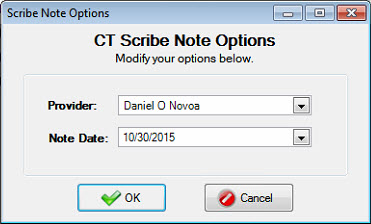
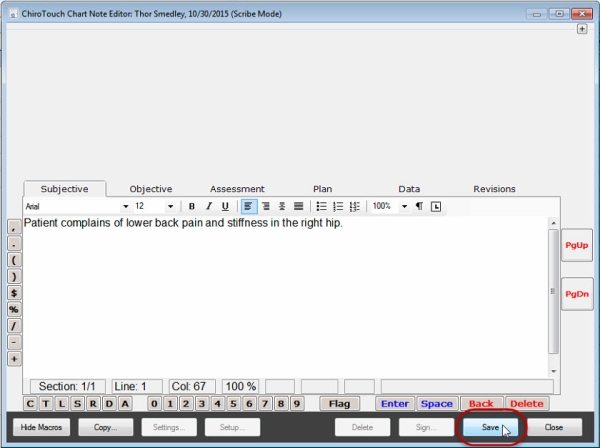
- In the resultantChart Notes screen, enter the applicable notes for this patient. Click Save when you are finished. The note you created will appear in the list of chart notes for this patient.
Edit a Note As a Scribe
Creating and Editing Notes in Scribe.
Viewing and Modifying Scribe Revisions.
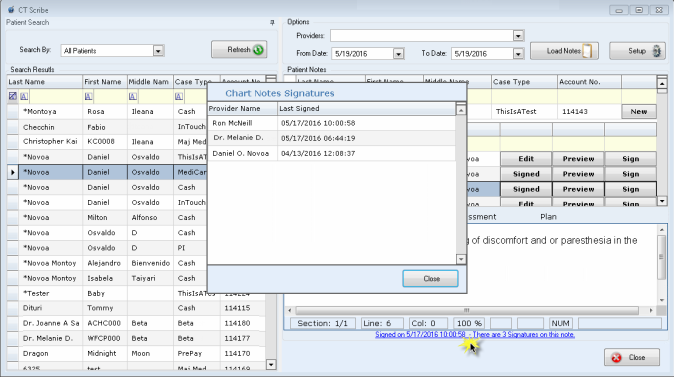
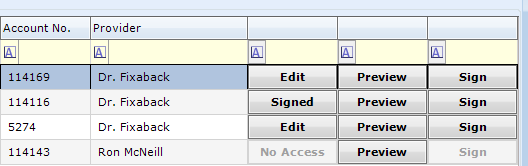
- To edit a patient's chart note, click Edit. Only notes with an active Edit button can be edited. A No Access notation indicates that you did not have scribe access when that note was created. If the note has been signed previously, this button will read Signed. You can still add your own signature to a chart note by clicking the Signed button.
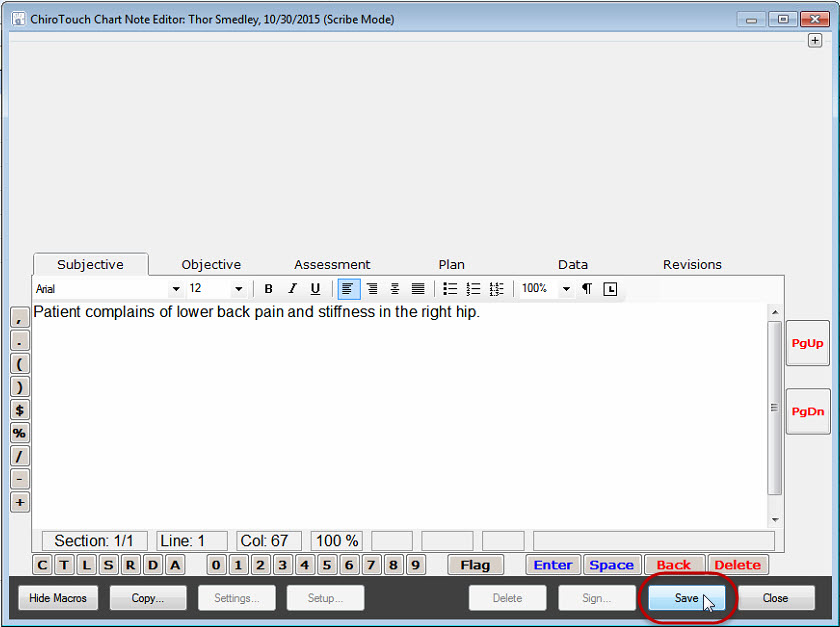
- Make changes to the note as necessary, then click Save.
 Compare Notes as a Scribe
If you have designated a scribe and would like to review their work, you can compare your original note with their revised version.
- Open Provider All-In-One.
- Select a patient.
- Open the patient's chart note.
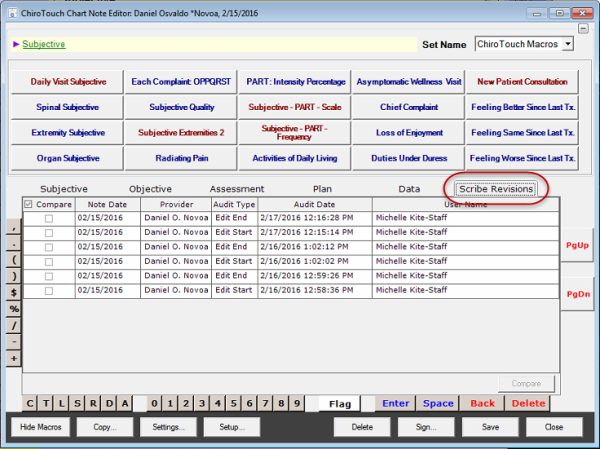
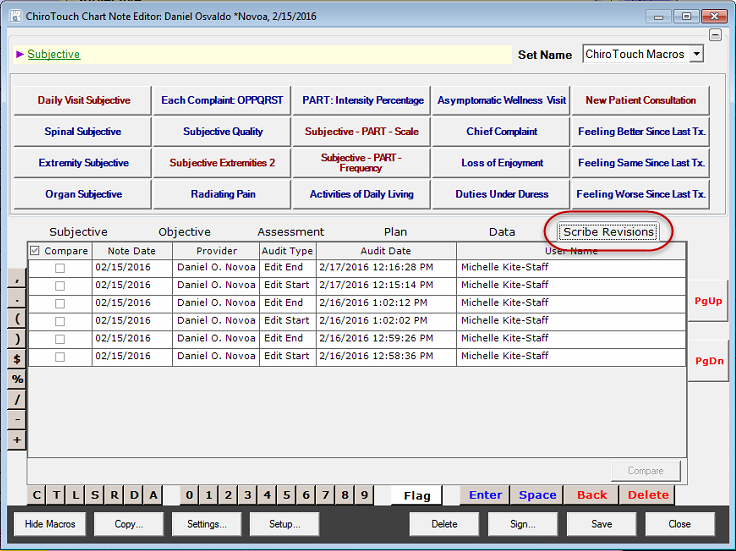
- Click the Scribe Revisions tab.
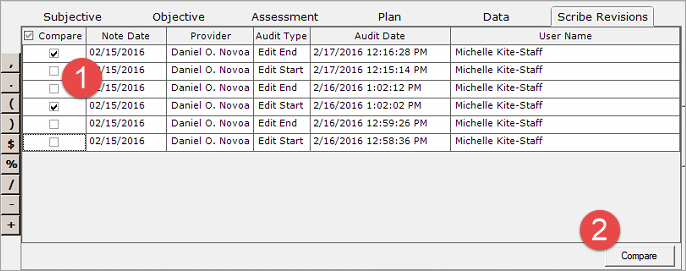
- Select the two versions that you want to compare and then click the Compare button. Notice that the button is inactive until you have selected exactly 2 notes.
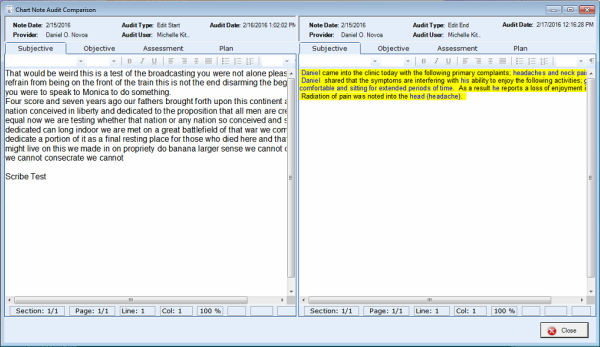
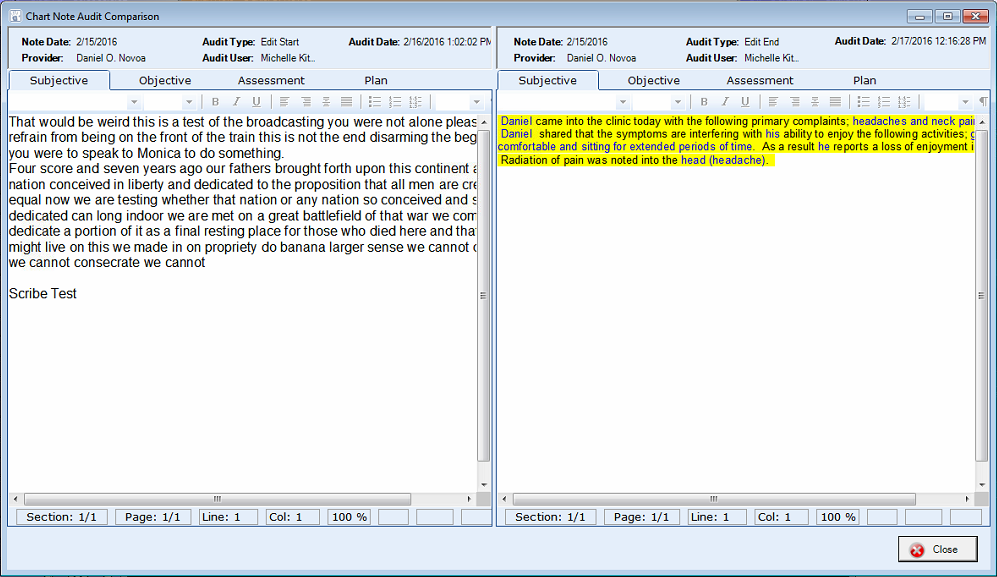
- The notes are opened in a side-by-side comparison window. You cannot make changes in this view. It is solely for comparing which edits were made between versions of the same note. Click Close to close this window.
 Allow Multiple Signatures on Chart Notes
If you have given Scribe access to another user, that user can edit your notes via the CT Scribe interface or by accessing the note directly. However, only another provider can sign the edited notes.
To view who has signed a note, click on the Signature link below the note preview. This link displays how many signatures a note currently has, and the date and time that each signature occurred.