Checking Your System Qualifications
Use the procedures below to verify that your computers meet the minimum system requirements to run ChiroTouch software in your practice.
BEST PRACTICE: To quickly determine which operating system you are using, click here and follow the instructions.
BEST PRACTICE: To quickly determine which Microsoft Office Edition you are using, click here and follow the instructions.
 Finding your System Information
The system information screen lists many of your computer's system specifications, such as your Windows edition, service pack, processor, and memory (RAM). You must compare this information against what is specified in the System Requirements for Servers and Workstations.
Press the Windows key on your keyboard and simultaneously press the Pause/Break key. If you have a separate Pause key, press it instead:

Windows 7
The Windows 7 System screen will look like the following. You can identify the operating system under "Windows edition":
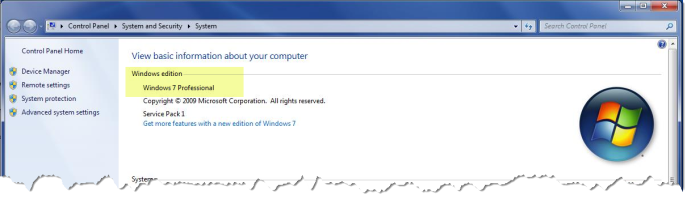
CRITICAL: If you have Windows 7 machines or Windows Server 2008 machines you will need to upgrade your operating system to Windows 10 or newer, or Windows Server 2012 (optional for servers) or newer by January 15, 2020.
Windows 8.1
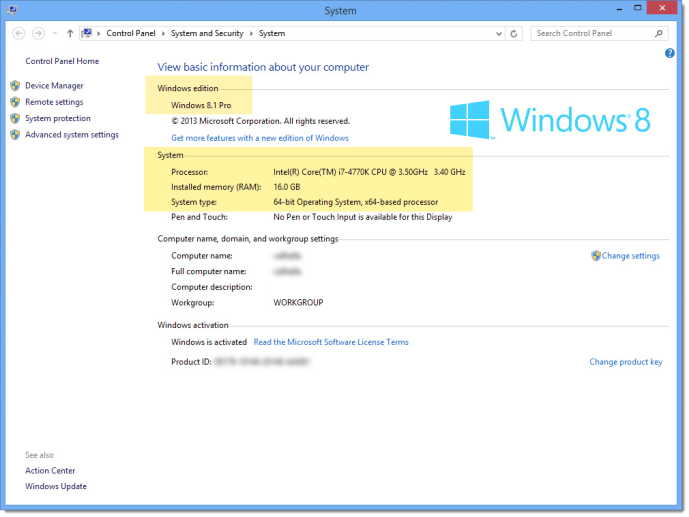
Windows 8.1 System screen showing the OS edition, processor type, and RAM capacity:
Windows 10
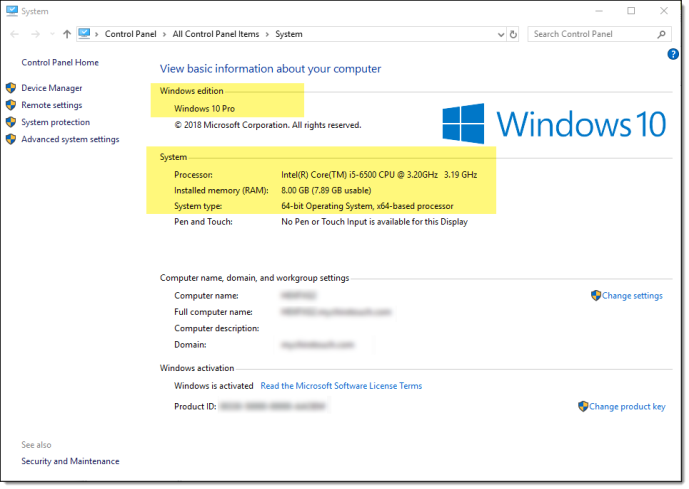
Windows 10 System screen showing the OS edition, processor type, and RAM capacity:
Verifying Your Microsoft Office Version
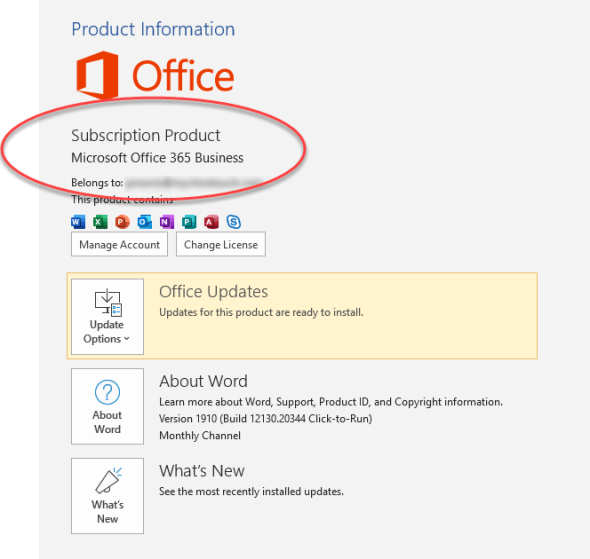
To determine which Microsoft Office Edition you are using, click here and follow the instructions presented on that page. You will then be able to identify your MS Office Edition and compare it with the MS Office minimum requirements specified in the System Requirements.
You can also click the "About..." button to learn more about the version of this MS Office application:
Checking Your Hard Drive Capacity
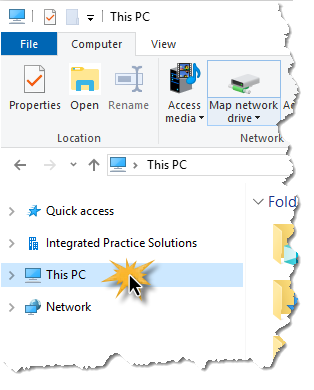
- Open a File Explorer window and click on This PC at the left.
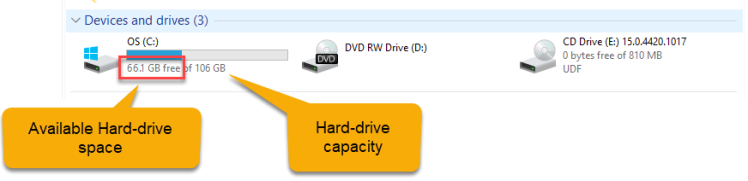
- Observe the amount of free space, and the total hard drive capacity, is listed below each hard drive under the section "Devices and drives". You must compare this free-space a against what is specified in the System Requirements for servers and workstations.
- (Optional) Right-click the drive and select Properties to view more detailed information.