Retention Messages
With each campaign you can create a wide variety of retention messages, each to go out once a month.
Planning a Campaign
Retention campaigns offer a great deal of flexibility by:
- Provider
- Case Type
- Latency of first, last, or missed appointments
- Purpose of Visit
- Having or not having an appt scheduled in the future
General Guidelines
Start with email campaigns and use "Copy" to create corresponding text campaigns.
Main Screen
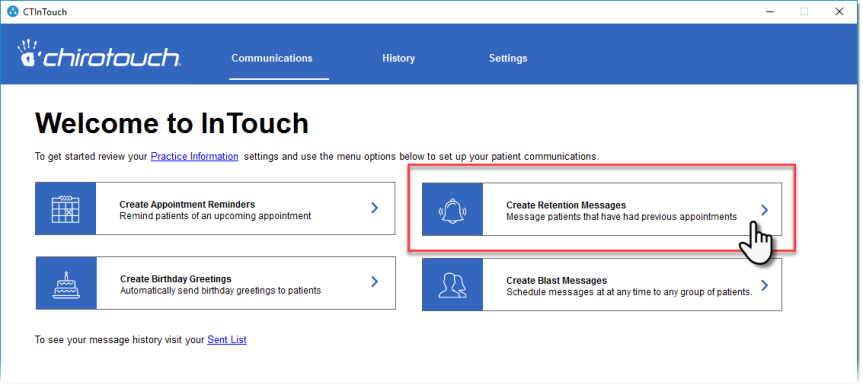
This is accessed by clicking anywhere in the Create Retention Messages box.
You can also access this screen from anywhere in InTouch by clicking Communications, then Retention.
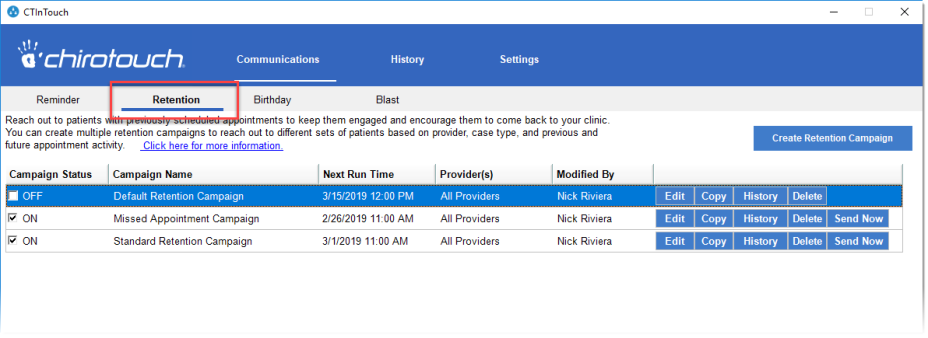
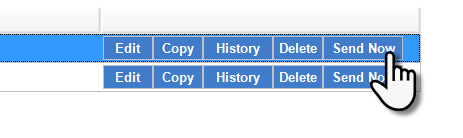
"Send Now" Button
This button is provided for all active Retention campaigns. If you have a suspicion that messages may not have gone out according to the schedule due to some technical error on your end or the SMS provider's, clicking Send Now will trigger all the campaign's scheduled messages to be sent immediately.
You then will see this message:
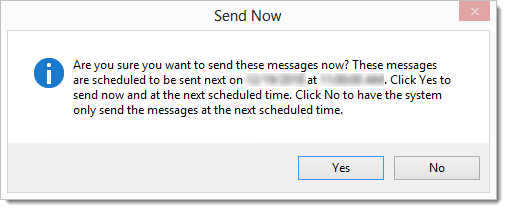
Click Yes to send the message.
Click here for instructions on how to create a Retention Campaign.