Adjust Schedule View
The Select View button displays the name of the current schedule view. Tap it to select a different schedule view.

- Tap the Select View button.
- Tap Day/Providers or Day/Rooms.
- Depending on your selection, the software will display either providers or rooms in the filter checkboxes on the right side of the main application window.
- Tap a filter checkbox to disable that filter. Tap the checkbox again to select the filter.
- Touch and hold the filter checkbox area to select all providers or rooms.
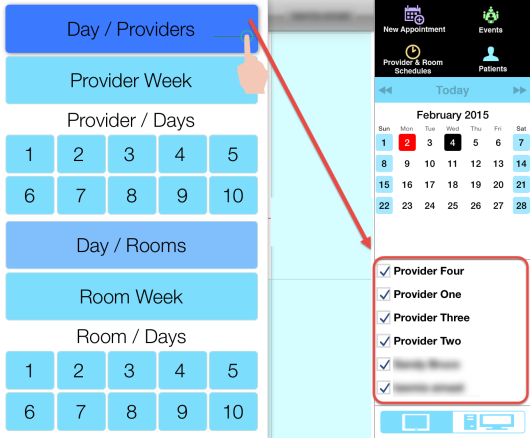
- In the calendar on the right side of the main application window, tap Today or tap a month button and/or a week button to display your desired calendar week.
- Tap the Select View button.
- Tap Provider Week or Room Week.
- Depending on your selection, the software will display either providers or rooms in the filter checkboxes on the right side of the main application window.
- Tap a filter checkbox to select that provider or room in the view.
- In the calendar on the right side of the main application window, tap Today or tap a month button and/or a week button to display your desired calendar week.
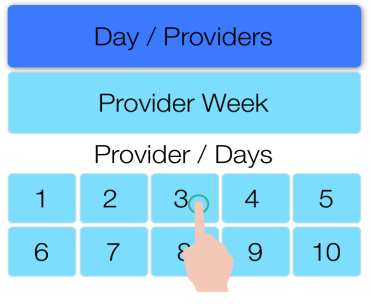
- Tap the Select View button.
- Tap a number under Provider / Days or Room / Days. The number you select corresponds to the number of days in the view.
- Depending on your selection, the software will display either providers or rooms in the filter checkboxes on the right side of the main application window.
- Tap a filter checkbox to select that provider or room in the view.
- In the calendar on the right side of the main application window, tap Today or tap a month button and/or a week button to display your desired calendar week.
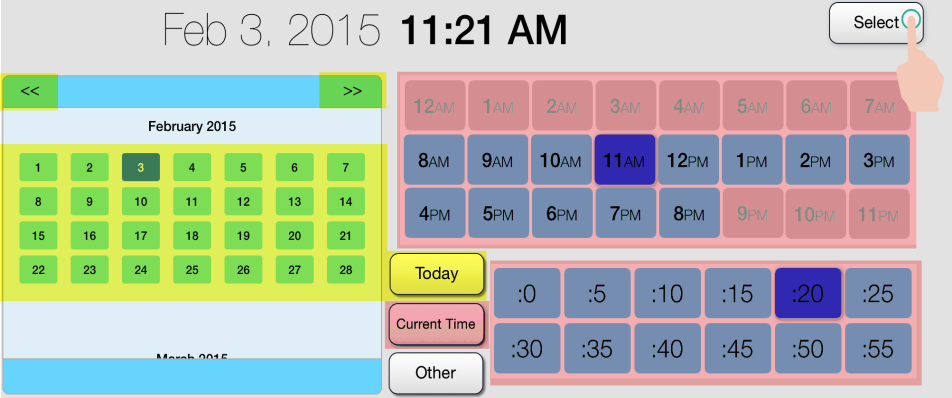
- Touch and hold in the calendar on the right side of the application window. The software will display the Select Date window.

- Tap a month button and/or a date, or tap Today.
- Tap an hour and minute button, or tap Current Time.
- To select a date years ahead or in the past, tap Other. Set the month, day and year and tap Select to close the date picker.
- Tap Select. The software will display the date and time in the current view.
 View multiple provider or room schedules on a single day