CTM Scheduler Overview
The CTM Scheduler application allows providers to access CT Scheduler functionalities on the go via their iPads.
NOTE:
Your iPad must be connected to the Internet for the CTM Scheduler application to work properly.
Open the CTM Scheduler application
Tap the CTM Scheduler icon to open the application:
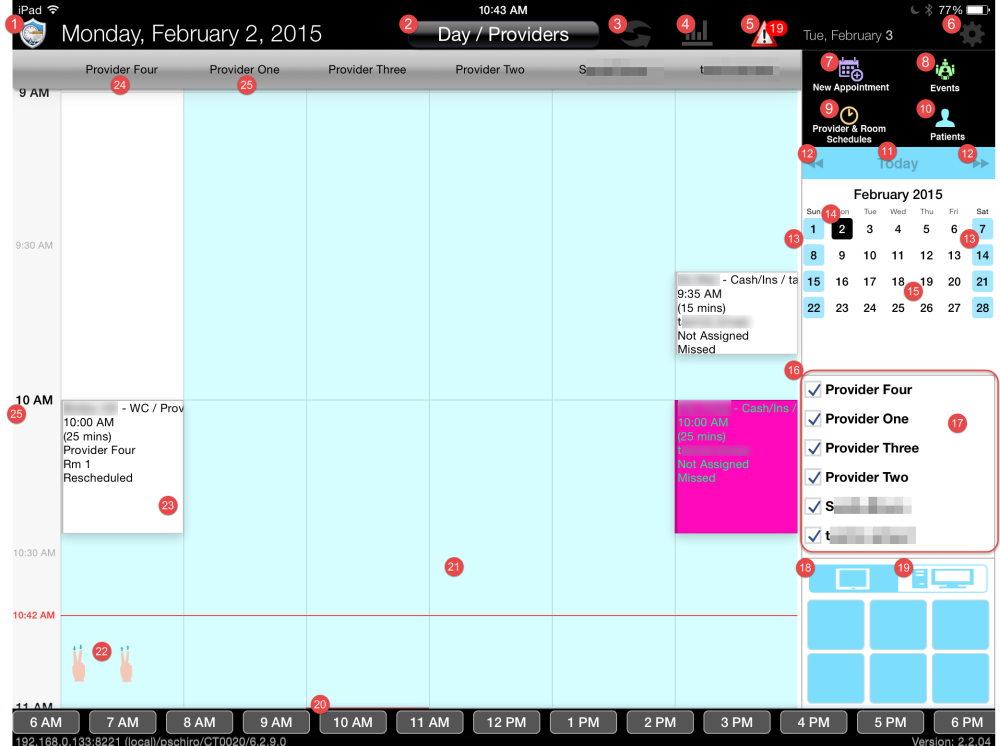
Navigate the main application window
| Action | Gesture | |
|
1. Log out | Tap |
|
2. Select view |
Tap | |
| 3. Refresh data | Tap | |
| 4. View appointment statistics for current view | Tap | |
| 5. Manage appointment requests | Tap | |
| 6. Configure settings | Tap | |
| 7. Schedule appointment | Tap | |
| 8. Manage events | Tap | |
| 9. Manage provider and room schedulers | Tap | |
| 10. Search for active patients | Tap | |
| 11. View today | Tap | |
| 12. Adjust month | Tap | |
| 13. Adjust week | Scroll | |
| 14. Select day | Tap | |
| 15. Open Date/Time Select view | Touch and hold | |
| 16. Filter view by individual provider(s)/rooms in Day/Providers and Day/Rooms view | Tap | |
| 17. Show all providers/rooms in Day/Providers and Day/Rooms view | Touch and hold | |
| 18. Save current view in iPad Schedule Book Button | Touch and hold | |
| 19. Load view from CT Scheduler Schedule Book Button | Tap | |
| 20. Zoom in to a specific time | Tap | |
| 21. Schedule new Appointment or Event | Press and Hold | |
| 22. View earlier or later in the day or week | Two-finger swipe | |
| 23. Reschedule appointment | Tap or Press and Hold + drag | |
| 24. View Provider/Room appointment history | Touch and hold | |
| 25. View all appointments scheduled in a time row or in a Provider/Room column | Tap |