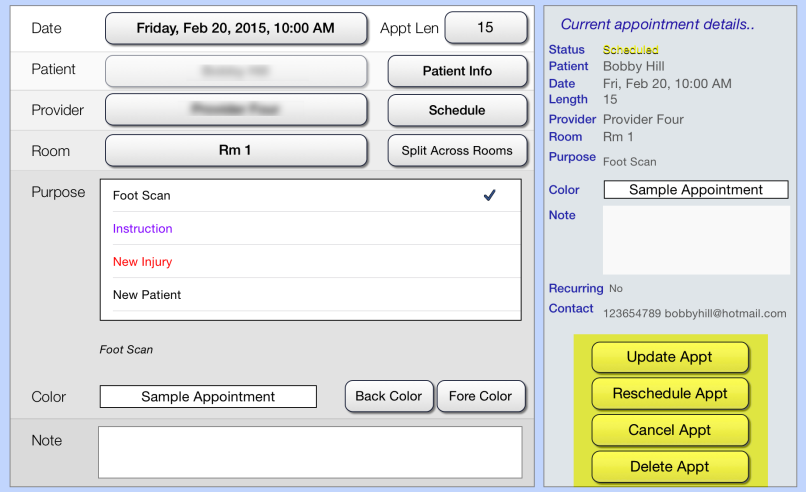
Appointment Actions
 Create new appointment
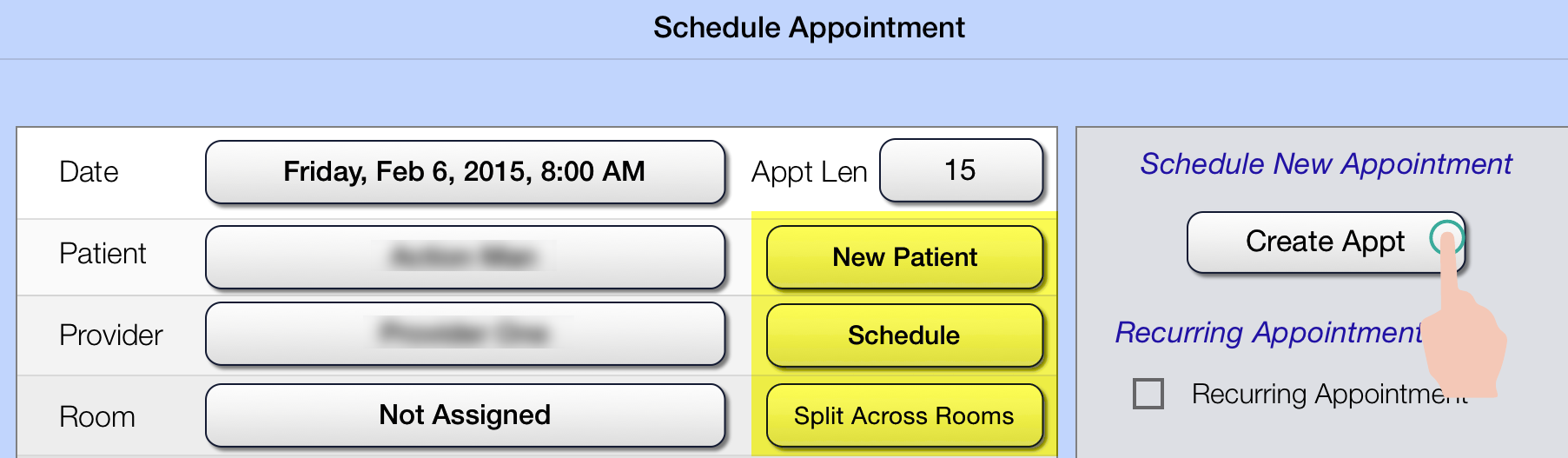
- Open the Schedule Appointment window:
- Tap New Appointment in the main application window.
- Press and hold a blank area in the schedule.
- Tap to select information for the appointment including date and time, patient, provider and room.
- Tap Schedule to view the schedule for the provider you selected.
- Tap New Patient to open the New Patient window and create a new patient record.
- Tap Split Across Rooms to open the Split Room Appointment window and choose multiple rooms for the appointment.
- Tap Create Appt.
Manage appointments (edit, reschedule, cancel, delete)
Tap an appointment in the schedule view in the main application window. The software will open a dialog window with limited appointment information. Tap Edit. 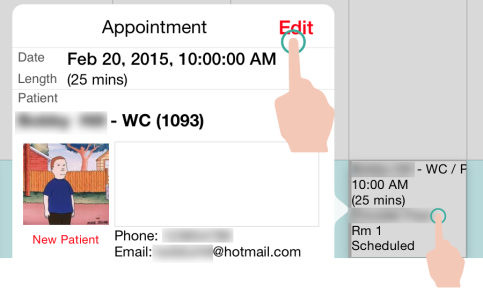
The software will open the Edit Appointment window.
- Update appointment:
- Reschedule appointment:
- Cancel appointment:
- Delete appointment:
- I M P O R T A N T
Deleting the appointment will completely and permanently delete the appointment record from your system and the appointment will not be counted as a scheduled, canceled, rescheduled or other type of visit.