The Wellness Score®
Cash Practice clients can now run Wellness Scores directly within ChiroTouch.
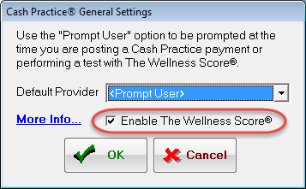
 Configure Default Cash Practice Provider
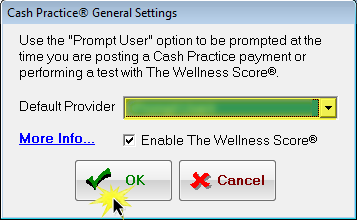
- In the Cash Practice General Settings dialog box, select the default provider from the Default Provider drop-down menu. Alternatively, select <Prompt User> from the Default Provider drop-down menu and the software will prompt you to select a provider when you post a Cash Practice payment or perform a test with The Wellness Score®.
- Click OK to save or Cancel to exit.
Access The Wellness Score in PAIO
Run Wellness Score
- Select a patient. Then, click the The Wellness Score button.

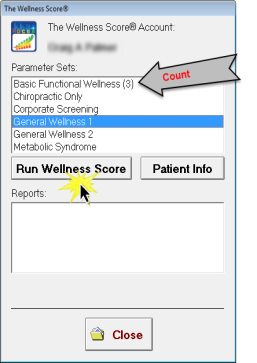
- In The Wellness Score dialog box, select a parameter set from the Parameter Sets list.
- Click Run Wellness Score.
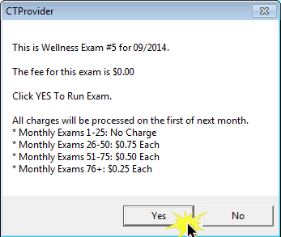
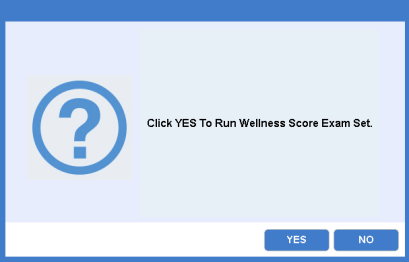
- The software will open a dialog window displaying the fee for the exam. Click Yes to run the exam; click No to cancel.
- The software will open a Wellness Score window. Enter the patient measurement data listed in the window, which the software will use to calculate the Wellness Score. Click Save.
- The software will prompt you to click Print to print a copy of the patient's Wellness Score or Close.
- After you close the Wellness Score window, the software will display the test in the Reports list in the Wellness Score dialog box and display patient's most recent Wellness Score grade in the badge on the The Wellness Score button in Provider All-In-One.
NOTE:
A test will be charged and added the moment you click Yes. If you don't complete the test, the software will display the incomplete test in the Reports: list in the The Wellness Score dialog box. You can complete an incomplete test later. You cannot compare an incomplete test with a finished test.

View Patient Information Including Past Wellness Exam Scores
- Select a patient. Then, click the The Wellness Score button.

- Select a parameter set from the Parameter Sets list.
- Click Patient Info.
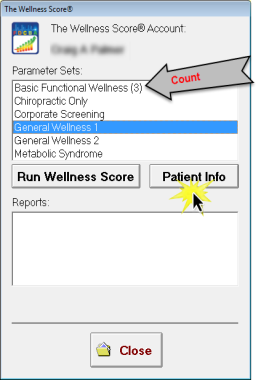
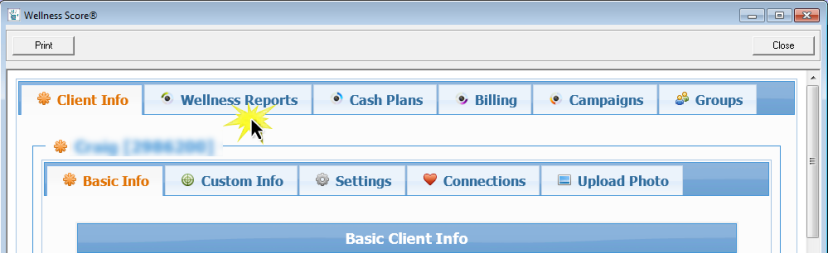
- The software will open the Wellness Score window. Click each tab to navigate through the patient's information.
- Click the Wellness Reports tab to view past wellness exam scores.
Compare Wellness Exam Scores
- Select a patient. Then, click the The Wellness Score button.

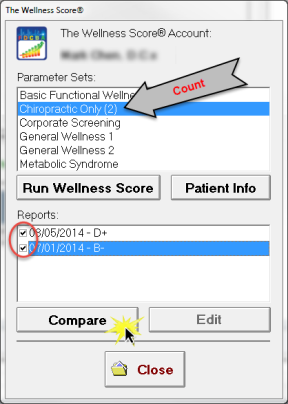
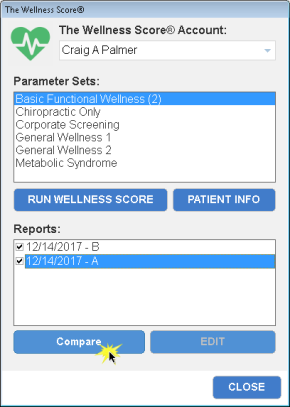
- Select a parameter set from the Parameter Sets list that has a count value in parenthesis. This count value indicates the number of past Wellness Exam Scores that have been run for this parameter for this patient.
- The software will display the past Wellness Exam Scores in the Reports list in the The Wellness Score dialog box. Select the past score reports you wish to compare from the list and click Compare.
- The software will open a Wellness Score window displaying a detailed, side-by-side comparison of the score reports you selected.
Access The Wellness Score in Front Desk
Run Wellness Score
- Open the Front Desk application and click Patient Management.
- Select a patient and click Pat Info.
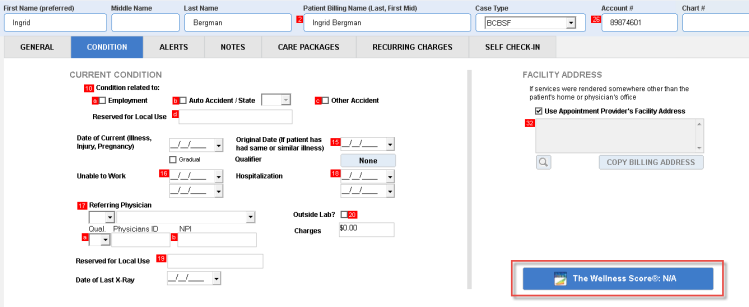
- Click the Condition tab.
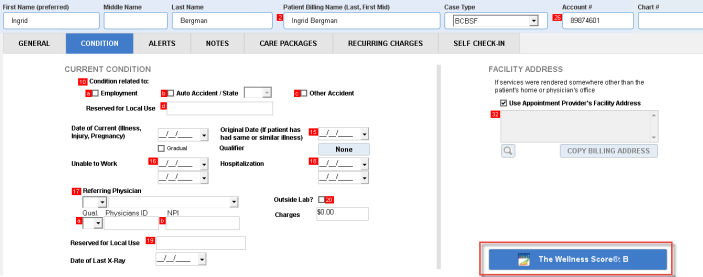
- Click The Wellness Score button.
- In The Wellness Score dialog box, select a parameter set from the Parameter Sets list.
- Click Run Wellness Score.
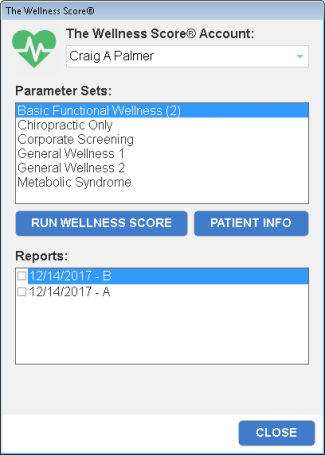
- The software will open a dialog window displaying the fee for the exam. Click Yes to run the exam; click No to cancel.
- The software will open a Wellness Score window. Enter the patient measurement data listed in the window, which the software will use to calculate the Wellness Score. Click Save.
- The software will prompt you to click Print to print a copy of the patient's Wellness Score or Close.
- After you close the Wellness Score window, the software will display the test in the Reports list in the Wellness Score dialog box and display patient's most recent Wellness Score grade in the badge on the The Wellness Score button in Front Desk.
NOTE:
A test will be charged and added the moment you click Yes. If you don't complete the test, the software will display the incomplete test in the Reports list in the Wellness Score dialog box. You can complete an incomplete test later. You cannot compare an incomplete test with a finished test.

NOTE:
The software will display a score of "n/a" in the badge on the The Wellness Score button (as shown above) until you run a Wellness Score for that patient.
View Patient Information Including Past Wellness Exam Scores
- Open the Front Desk application and click Patient Management.
- Select a patient and click Pat Info.
- Click the Condition tab.
- Click The Wellness Score button.
- Click Patient Info.
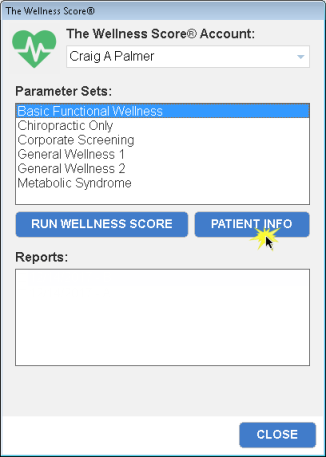
- The software will open the Wellness Score window. Click each tab to navigate through the patient's information.
- Click the Wellness Reports tab to view past wellness exam scores.
Compare Wellness Exam Scores
- Open the Front Desk application and click Patient Management.
- Select a patient and click Pat Info.
- Click the Condition tab.
- Click The Wellness Score button.
- Select a parameter set from the Parameter Sets list that has a count value in parenthesis. This count value indicates the number of past Wellness Exam Scores that have been run for this parameter for this patient.
- The software will display the past Wellness Exam Scores in the Reports list in the The Wellness Score dialog box. Select the past score reports you wish to compare from the list and click Compare.
- The software will open a Wellness Score window displaying a detailed, side-by-side comparison of the score reports you selected.
Enter WellNess Score ®Data into Chart Notes using Advanced Macro Commands
By using the Wellness Score advanced commands, you can include in your chart notes summary information regarding a patient's current Wellness Score, previous Wellness Score, and the % change between them.
Insert this information into a chart note by adding the following advanced commands to your macro buttons.
- CURR_WELLNESS - inserts the user's current Wellness Score
- PREV_WELLNESS - inserts the user's previous Wellness Score
- WELLNESS_CHANGE - insert's the user's % change between the patient's current and previous Wellness Score
Click here for more information on how to insert this advanced command into your macro set.