PQRS How-To Guides
 PQRS 2016 How-To Guide
2015 was the first year that CMS penalizes those who failed to report data on PQRS quality measures. You must participate in the 2016 reporting period (Jan. 1-Dec. 31, 2016) or CMS will incur a 2% penalty on your 2018 Medicare reimbursement.
To meet the compliance requirements for the PQRS measures that apply to DCs, you will first configure ChiroTouch's PQRS 2016 features (the new PQRS 2016 macro set and setup tool) in your software.
Then you will report on PQRS measures for all eligible visits. Use the PQRS 2016 macro set buttons to attach the appropriate 2016 PQRS G-code(s) in the Assessment section of the patient's SOAP chart notes in the Provider All-In-One application. Your ChiroTouch software will record the G-code information in box 24D of the CMS form 1500 for the visit.
IMPORTANT:
You should report Measures #131 and #182 on every visit, for every Medicare patient who is at least 18 years old and where you have reported a spinal CMT code (CPT® code 98940, 98941, or 98942).
In 2016, you must satisfactorily report on both of these measures at least 50% of the eligible visits, and successfully perform each measure at least once, to avoid the 2018 payment adjustment.
The claim will count toward your compliance after you submit it to Medicare. You are responsible to submit your claims to achieve PQRS compliance.
NOTE:
The 2015 PQRS G-codes are not reimbursable; they are used for reporting purposes only. Each G-code has a charge of $0.01 associated with it; you will need to adjust your Medicare fee schedule and any other fee schedule(s) associated with your Medicare Part B patients to balance your patients' ledgers against this $0.01 charge amount.
For more information, see the ACA PQRS Guidebook or contact ChiroTouch Support.
DefinitionsPain Assessment (PA): This is done when the patient completes the patient subjective form in the CTSignIn application or when you complete the Subjective portion of the patient's SOAP note. In CTSignIn, have your Medicare Part B patients complete either the Pain Scale or Pain Scale Rev2 subjective and document that you used the Visual Analog Scale in the patient's chart notes.
Functional Outcome Assessment (FOA): You must start and complete a Functional Outcome Assessment on the first day of treatment and repeat it no more than 30 days after the first day of treatment.
NOTE:
ChiroTouch supplies at least 14 different digital FOAs to choose from, including Oswestry Disability Index (ODI), Roland Morris Disability/Activity Questionnaire (RM), and Neck Disability Index (NDI). Get help with using ChiroTouch's Outcomes Assessment forms.
Follow-Up Plan (FUP): This is detailed in the Plan section of the SOAP note. You can SALT the FUP until you re-evaluate the patient.
2016 Reporting Period: Jan. 1-Dec. 31, 2016
Measures and G-CodesIf these measures are not part of your normal practice, you can still achieve compliance by reporting that you have not done a PA or FOA.
Measure #131. Pain Assessment (PA) and Follow‐Up Plan (FUP)
| Measure # 131—Pain Assessment and Follow-up | |
| Required Provider Action | Code |
| Pain assessment documented as positive using a standardized tool AND a follow-up plan is documented | G8730 |
| Pain assessment using a standardized tool is documented as negative, no follow-up plan required | G8731 |
| Pain assessment documented as positive, follow-up plan not documented, documentation the patient is not eligible for a pain assessment using a standardized tool | G8442 |
| Pain assessment documented as positive, follow-up plan not documented, documentation the patient is not eligible | G8939 |
| No documentation of pain assessment, reason not given | G8732 |
| Pain assessment documented as positive using a standardized tool, follow-up plan not documented, reason not given | G8509 |
Measure #182. Functional Outcome Assessment (FOA)
| Measure # 182—Functional Outcome Assessment | |
| Required Provider Action | Code |
| Functional outcome assessment documented as positive using a standardized tool AND a care plan, based on identified deficiencies on the date of the functional outcome assessment, is documented | G8539 |
| Functional outcome assessment using a standardized tool is documented; no functional deficiencies identified, care plan not required | G8542 |
| Functional outcome assessment using a standardized tool is documented within the previous 30 days and care plan, based on identified deficiencies on the date of the functional outcome assessment, is documented | G8942 |
| Functional Outcome Assessment NOT documented as being performed, documentation the patient is not eligible for a functional outcome assessment using a standardized tool | G8540 |
| Functional outcome assessment using a standardized tool not documented, reason not given | G8541 |
| Functional outcome assessment using a standardized tool not documented, reason not given | G8543 |
| Not listed in 2016 | G9227 |
Configure PQRS 2016 FeaturesYou will only need to configure these once in your ChiroTouch software.
1. Delete 2015 PQRS MacrosIf you downloaded the 2015 PQRS macros, delete them from your system.
2. Download the PQRS 2016 Macro Set- Click here; or, log in to MyChiroTouch.com and navigate to the Support page and click the PQRS icon.
- Click the Click here to download the PQRS 2016 macro set link.
- Your operating system will open a dialog box indicating that you have chosen to open a file, PQRS 2016.mdb. Click Save File.
- Save the file on your computer.
3. Import the PQRS 2016 Macro Set- Open the Macros Setup Tool from the Chart Note Editor in the Provider All-In-One application.
- Click Import.
- Your operating system will open a dialog window. Select the file that you downloaded in step 2 above (PQRS 2016.mdb). Click Open.
- Your software will open a dialog box. Select PQRS 2016 and click OK.
- I M P O R T A N T
IMPORTANT: Do not rename the PQRS 2016 macro set. - Your software will open a dialog box confirming that the import action was successful. Click OK.
4. Download the PQRS 2016 Setup Tool- Click here; or, log in to MyChiroTouch.com and navigate to the Support page and click the PQRS icon.
- Click the Click here to download the PQRS 2016 setup tool link.
- Your operating system will open a dialog box indicating that you have chosen to open a file, PQRS Setup Tool 2016.exe. Click Save File.
- Save the file on your computer.
5. Run the PQRS Setup Tool- Double-click the PQRS Setup Tool 2016.exe file.
- Your software will open a PQRS Setup Tool window and populate your Server and Database names in the respective fields.
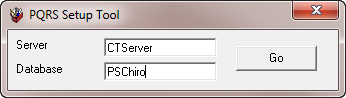
- Click Go. Your software will open a dialog box indicating that setup is complete. Click OK.
- Close the PQRS Setup Tool dialog box.
Check that the values in the Server and Database values are correct: open the Front Desk application and look at the top menu bar. Your server name and database name appear in parentheses.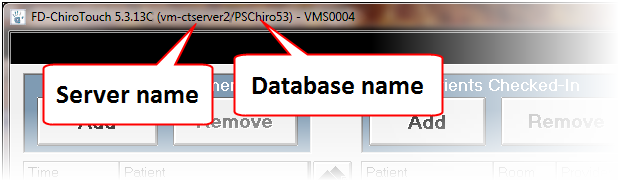
6. Balance Your Medicare Part B Patient LedgersFor reporting purposes, each G-code has a $0.01 charge amount associated with it. Medicare accepts this charge in all states and adjusts for the $0.01 when processing it.
If you already have a Medicare fee schedule set up in the Maintenance application and associated with your Medicare Part B patients in the Front Desk application, the PQRS 2016 Setup Tool will automatically implement the adjustment for the G-code charge amount ($0.01) on the ledger of each associated patient.
If you do not have a Medicare fee schedule set up, use the Maintenance Application to set up a Medicare fee schedule. In the Front Desk application, assign the Medicare fee schedule to each of your Medicare Part B patients via the Fee Schedule drop-down menu in the Pat. Info window. Run the PQRS 2016 Setup Tool again and your software will automatically implement the adjustment for the G-code charge amount ($0.01) on the patient's ledger.
Report on PQRS MeasuresUse the buttons in the PQRS 2016 macro set to attach the appropriate 2016 PQRS G-code(s) to the Assessment section of your Medicare Part B patients' SOAP chart notes.
Attach PQRS G-Codes on every Medicare Part B patient visit.
As you need to have the patient complete a FOA once every month at minimum and on every initial visit or new diagnosis, you will not be able to auto-populate the G-codes. If you use the SALT feature, you should delete the previous Assessment note and start a new one for each Medicare Part B patient.
You are responsible to submit your claims to Medicare to achieve compliance. Though your software will record the correct G-code(s) on the claim form, you must actually submit your completed claims.
IMPORTANT:
Failure to either attach the appropriate G-codes to the notes of your Medicare Part B patients as outlined in the steps below or to submit your completed claims to Medicare will result in financial penalties and may signal audit alerts.
Enter Assessment Notes
- Open the Provider All-In-One application.
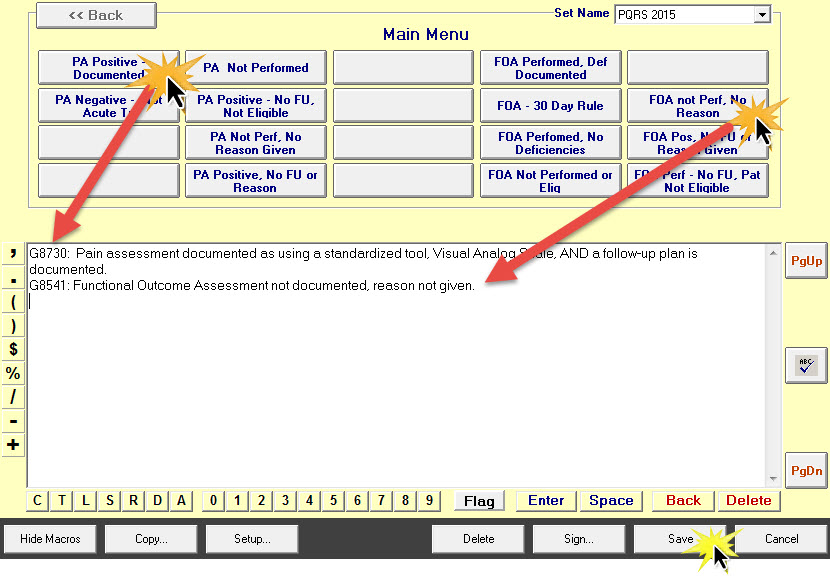
- In the Chart Note Editor, select PQRS 2016 from the Set Name drop-down menu.
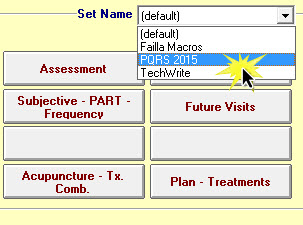
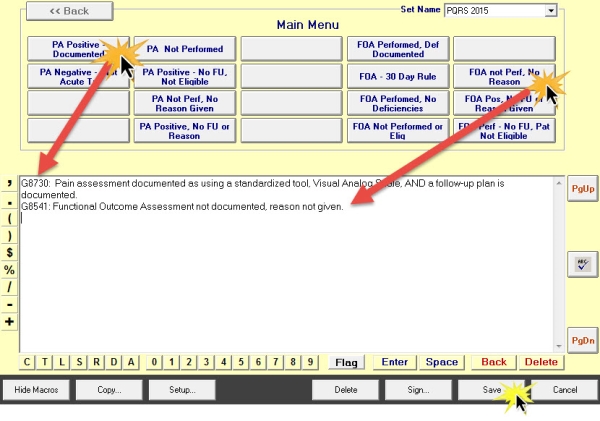
- Click the appropriate macro buttons (one from the Measure 131 group and one from the Measure 182 group) and select the appropriate details if your software prompts you to enter more information. Your software will populate the G-codes and description in the text field below the macro buttons.
- N O T E
If you select PA Positive-Documented and your patient completed the patient subjective form in the CTSignIn application, select Visual Analog Scale when your software prompts you to enter the pain assessment tool that was used. - Click Save. Your software will list the G-codes that correspond to the macro buttons you selected on the printed or electronic CMS form 1500 in box 24D.
IMPORTANT:
You will report your compliance progress to CMS by submitting the completed CMS form 1500 for each Medicare Part B patient visit. You are responsible to submit your claims to Medicare.
PQRS 2015 How-To Guide
2015 is the first year that CMS will penalize those who fail to report data on PQRS quality measures. You must participate in the 2015 reporting period (Jan. 1-Dec. 31, 2015) or CMS will incur a 2% penalty on your 2017 Medicare reimbursement.
To meet the compliance requirements for the PQRS measures that apply to DCs, you will first configure ChiroTouch's PQRS 2015 features (the new PQRS 2015 macro set and setup tool) in your software.
Then you will report on PQRS measures for all eligible visits. Use the PQRS 2015 macro set buttons to attach the appropriate 2015 PQRS G-code(s) in the Assessment section of the patient's SOAP chart notes in the Provider All-In-One application. Your ChiroTouch software will record the G-code information in box 24D of the CMS form 1500 for the visit.
IMPORTANT:
You should report Measures #131 and #182 on every visit, for every Medicare patient who is at least 18 years old and where you have reported a spinal CMT code (CPT® code 98940, 98941, or 98942).
In 2015, you must satisfactorily report on both of these measures at least 50% of the eligible visits, and successfully perform each measure at least once, to avoid the 2017 payment adjustment.
The claim will count toward your compliance after you submit it to Medicare. You are responsible to submit your claims to achieve PQRS compliance.
NOTE:
The 2015 PQRS G-codes are not reimbursable; they are used for reporting purposes only. Each G-code has a charge of $0.01 associated with it; you will need to adjust your Medicare fee schedule and any other fee schedule(s) associated with your Medicare Part B patients to balance your patients' ledgers against this $0.01 charge amount.
For more information, see the ACA PQRS Guidebook or contact ChiroTouch Support.
Changes to PQRS in 2015
- Removed Measure 317
- Revised Measure 131 G-code descriptions
- Revised Measure 182 G-code descriptions
Definitions
Eligible Visits: Visits during the 2016 reporting period by Medicare Part B patients.
Pain Assessment (PA): This is done when the patient completes the patient subjective form in the CTSignIn application or when you complete the Subjective portion of the patient's SOAP note. In CTSignIn, have your Medicare Part B patients complete either the Pain Scale or Pain Scale Rev2 subjective and document that you used the Visual Analog Scale in the patient's chart notes.
Functional Outcome Assessment (FOA): You must start and complete a Functional Outcome Assessment on the first day of treatment and repeat it no more than 30 days after the first day of treatment.
NOTE:
ChiroTouch supplies at least 14 different digital FOAs to choose from, including Oswestry Disability Index (ODI), Roland Morris Disability/Activity Questionnaire (RM), and Neck Disability Index (NDI). Get help with using ChiroTouch's Outcomes Assessment forms.
Follow-Up Plan (FUP): This is detailed in the Plan section of the SOAP note. You can SALT the FUP until you re-evaluate the patient.
Measures and G-Codes
If these measures are not part of your normal practice, you can still achieve compliance by reporting that you have not done a PA or FOA.
Measure #131. Pain Assessment (PA) and Follow‐Up Plan (FUP)
| Measure # 131—Pain Assessment and Follow-up | |
| Required Provider Action | Code |
| Pain assessment documented as positive AND follow-up plan documented | G8730 |
| Pain assessment documented as negative, no follow-up plan required | G8731 |
| Pain assessment NOT documented as being performed, patient is not eligible for a pain assessment for documented reasons | G8442 |
| Pain assessment documented as positive, follow-up plan not documented, patient not eligible for a follow-up plan for documented reasons | G8939 |
| Pain assessment not documented and reason not given | G8732 |
| Pain assessment documented as positive. Follow-up plan not documented and reason not given | G8509 |
Measure #182. Functional Outcome Assessment (FOA)
| Measure # 182—Functional Outcome Assessment | |
| Required Provider Action | Code |
| Functional outcome assessment (FOA) documented as positive and care plan based on deficiencies identified on the date of the FOA documented | G8539 |
| FOA documented; no functional deficiencies identified, care plan not required | G8542 |
| FOA documented within the previous 30 days and care plan based on deficiencies identified on the date of the FOA documented | G8942 |
| FOA not documented as being performed, patient not eligible for FOA for documented reasons | G8540 |
| FOA not documented, reason not given | G8541 |
| Positive FOA documented; care plan not documented, reason not given | G8543 |
| FOA documented, care plan not documented, patient is not eligible for a care plan for documented reasons G9227 | G9227 |
Configure PQRS 2016 Features
You will only need to configure these once in your ChiroTouch software.
1. Delete 2014 PQRS Macros
If you downloaded the 2014 PQRS macros, delete them from your system.
2. Download the PQRS 2015 Macro Set
- Click here; or, log in to MyChiroTouch.com and navigate to the Support page and click the PQRS icon.
- Click the Click here to download the PQRS 2016 macro set link.
- Your operating system will open a dialog box indicating that you have chosen to open a file, PQRS 2015.mdb. Click Save File.
- Save the file on your computer.
3. Import the PQRS 2015 Macro Set
- Open the Macros Setup Tool from the Chart Note Editor in the Provider All-In-One application.
- Click Import.
- Your operating system will open a dialog window. Select the file that you downloaded in step 2 above (PQRS 2015.mdb). Click Open.
- Your software will open a dialog box. Select PQRS 2015 and click OK.
- I M P O R T A N T
IMPORTANT: Do not rename the PQRS 2015 macro set. - Your software will open a dialog box confirming that the import action was successful. Click OK.
4. Download the PQRS 2015 Setup Tool
- Click here; or, log in to MyChiroTouch.com and navigate to the Support page and click the PQRS icon.
- Click the Click here to download the PQRS 2016 setup tool link.
- Your operating system will open a dialog box indicating that you have chosen to open a file, PQRS Setup Tool 2015.exe. Click Save File.
- Save the file on your computer.
5. Run the PQRS Setup Tool
- Double-click the PQRS Setup Tool 2015.exe file.
- Your software will open a PQRS Setup Tool window and populate your Server and Database names in the respective fields.
- Click Go. Your software will open a dialog box indicating that setup is complete. Click OK.
- Close the PQRS Setup Tool dialog box.
Check that the values in the Server and Database values are correct: open the Front Desk application and look at the top menu bar. Your server name and database name appear in parentheses.
6. Balance Your Medicare Part B Patient Ledgers
For reporting purposes, each G-code has a $0.01 charge amount associated with it. Medicare accepts this charge in all states and adjusts for the $0.01 when processing it.
If you already have a Medicare fee schedule set up in the Maintenance application and associated with your Medicare Part B patients in the Front Desk application, the PQRS 2016 Setup Tool will automatically implement the adjustment for the G-code charge amount ($0.01) on the ledger of each associated patient.
If you do not have a Medicare fee schedule set up, use the Maintenance Application to set up a Medicare fee schedule. In the Front Desk application, assign the Medicare fee schedule to each of your Medicare Part B patients via the Fee Schedule drop-down menu in the Pat. Info window. Run the PQRS 2016 Setup Tool again and your software will automatically implement the adjustment for the G-code charge amount ($0.01) on the patient's ledger.
Report on PQRS Measures
Use the buttons in the PQRS 2016 macro set to attach the appropriate 2015 PQRS G-code(s) to the Assessment section of your Medicare Part B patients' SOAP chart notes.
Attach PQRS G-Codes on every Medicare Part B patient visit.
As you need to have the patient complete a FOA once every month at minimum and on every initial visit or new diagnosis, you will not be able to auto-populate the G-codes. If you use the SALT feature, you should delete the previous Assessment note and start a new one for each Medicare Part B patient.
You are responsible to submit your claims to Medicare to achieve compliance. Though your software will record the correct G-code(s) on the claim form, you must actually submit your completed claims.
IMPORTANT:
Failure to either attach the appropriate G-codes to the notes of your Medicare Part B patients as outlined in the steps below or to submit your completed claims to Medicare will result in financial penalties and may signal audit alerts.
Enter Assessment Notes
- Open the Provider All-In-One application.
- In the Chart Note Editor, select PQRS 2015 from the Set Name drop-down menu.
- Click the appropriate macro buttons (one from the Measure 131 group and one from the Measure 182 group) and select the appropriate details if your software prompts you to enter more information. Your software will populate the G-codes and description in the text field below the macro buttons.
- N O T E
If you select PA Positive-Documented and your patient completed the patient subjective form in the CTSignIn application, select Visual Analog Scale when your software prompts you to enter the pain assessment tool that was used. - Click Save. Your software will list the G-codes that correspond to the macro buttons you selected on the printed or electronic CMS form 1500 in box 24D.
IMPORTANT:
You will report your compliance progress to CMS by submitting the completed CMS form 1500 for each Medicare Part B patient visit. You are responsible to submit your claims to Medicare.