Access and Configure Schedule Book Buttons
In CTM Scheduler, you can access the schedule views associated with your CT Scheduler application Schedule Book buttons.
You can also configure new, iPad-specific schedule views for iPad-specific Schedule Book buttons.
Click here to learn how to configure either your iPad-specific or CT Scheduler Schedule Book buttons as the default available buttons.
- Tap the PC button in the lower right of the main application window.
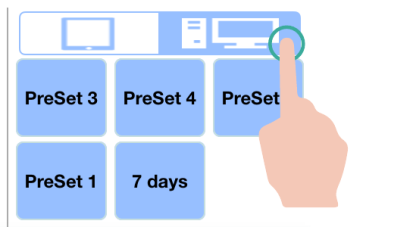
- Tap one of the Schedule Book buttons below the PC button.
- The software will display the view you selected.
- Adjust the application schedule view to a display configuration that you wish to save.
- Tap the iPad button in the lower right of the main application window. The software will display any existing Schedule Book configurations in text inside the The software will display any existing Schedule Book configurations in text inside the Schedule Book buttons.
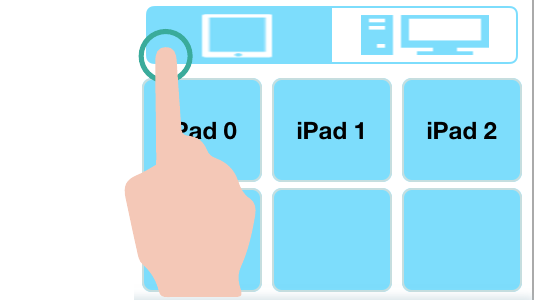
- Press and hold a blank Schedule Book button to configure it with your currently displayed view.
- The software will display a confirmation message.
- N O T E
To overwrite an existing iPad Schedule Book button configuration, press and hold the button. The software will overwrite the original view and configure your currently displayed view.
 Access CT Scheduler Schedule Book button schedule views