Introduction to the New CTInTouch
InTouch is a powerful patient engagement application that can resurrect your retention rates with the use of customizable, targeted campaigns.
Additionally, with InTouch you can now configure patients' communication preferences, and send emails and text messages to patients, directly through the new Messages tab the Front Desk.
Be sure to read about the new Maintenance user restrictions if you would like to control access to InTouch within your practice.
IMPORTANT: When converting from the web-based CTInTouch to our new InTouch (v7.2 going forward), be sure to check that your existing campaigns are set to the status you want what for each.
 Signing Up for InTouch
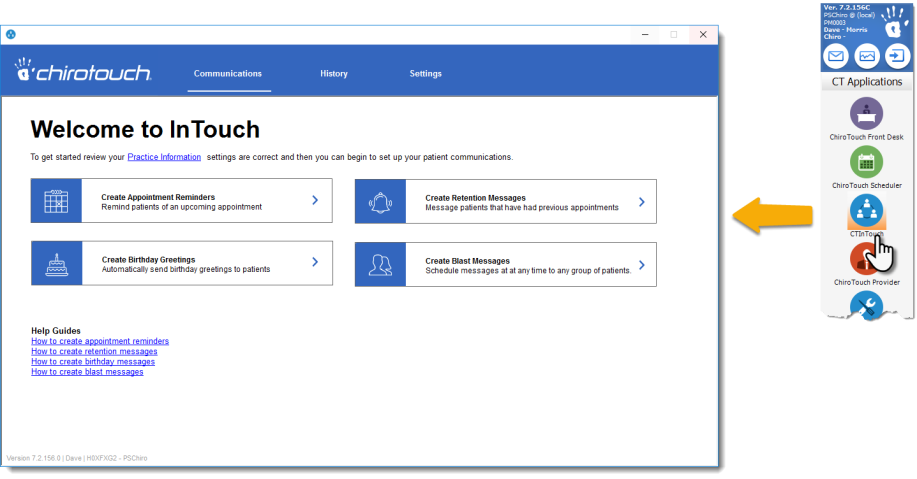
Open the Launcher and click the CTInTouch icon, which will open our CTInTouch sign-up page in your browser. Follow the instructions presented there for how to sign up:
NOTE: If you do not see the CTInTouch icon on your launcher you may need to go into the Launcher's Options (right-click on the cheir (hand)) and add CTIntTouch to your Launcher by selecting its checkbox under CT Applications. Then click OK to save this change.
Or, you can call our sales department at 844-307-4901.
Organization
Top-level navigation consists of three main subjects:
- Communications
- History
- Settings
Communications
Under Communications you have access to the creation and management of all campaign types.
History
Under History you can view records of all campaign runs, campaign messages sent, errors generated, and a tally of SMS (text) message usage. See here for more information.
Settings
Under Settings you configure and manage the following information:
Campaign Types
InTouch offers the following campaigns:
Appointment Reminders
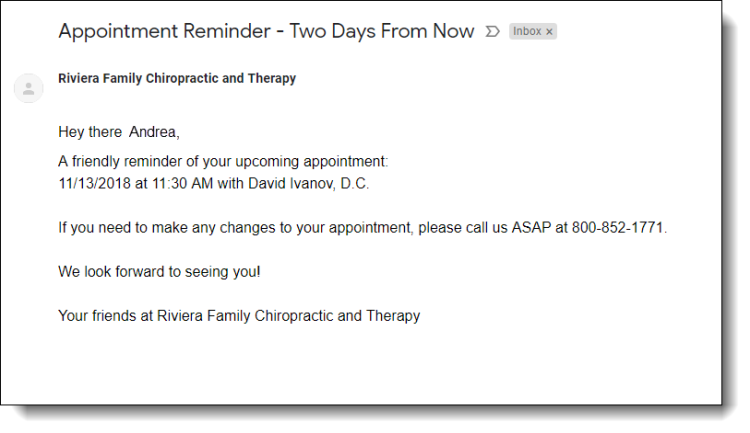
Set InTouch to send out up to three staggered appointment reminders in advance of every appointment. You can also design specific messages for first-time patients as well as existing patients.
For example:
For an overview of Appointment Reminder Campaigns, click here.
For detailed instructions on how to create an Appointment Reminder Campaign, click here.
Retention Messages
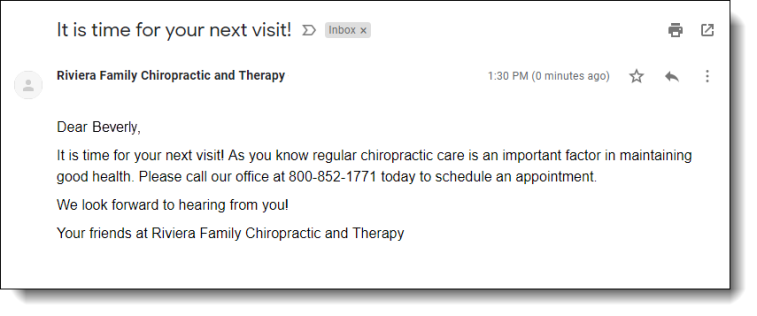
Reach out to patients with previously scheduled appointments, to keep them engaged and encourage them to come back to your clinic. Multiple retention campaigns can be created to reach out to different segments of your patients based on provider, case type, and previous and future appointment activity.
For example:
For an overview of Retention Message Campaigns, click here.
For detailed instructions on how to create a Retention Campaign, click here.
Birthday Greetings
Who doesn't love being wished a happy birthday? You can send out birthday greetings to your patients automatically, and tailor different message types for male and female patients if you wish.
For example:
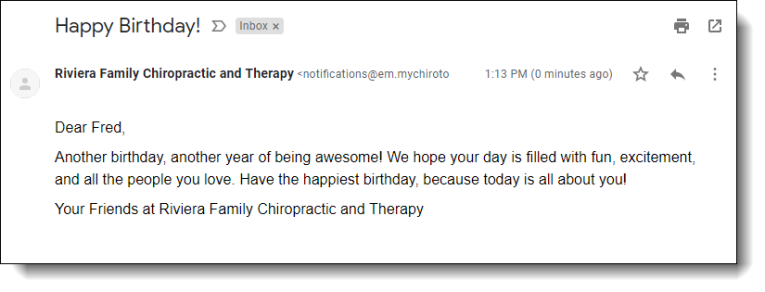
For an overview of Birthday Campaigns, click here.
For detailed instructions on how to create a Birthday Campaign, click here.
Blast Messages
Blast is a very flexible campaigning tool that allows you to sent a wide variety of one-time messages to selected groups of patients, or to selected individuals. You can create email and text messages saying anything you would like to share with your patients.
For example:
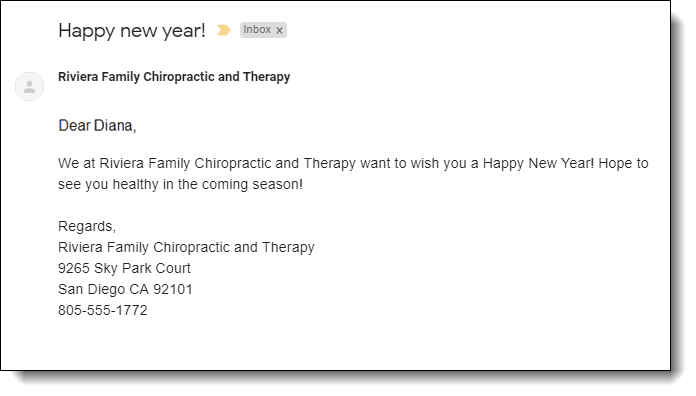
For an overview of Blast Message Campaigns, click here.
For detailed instructions on how to create a Blast Campaign, click here.
Common Controls and other features
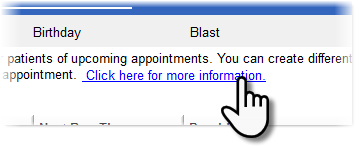
Getting Help and Guidance While Using InTouch
Every screen has a handy link to these Online Manual help pages. Clicking on one of these links takes you to the page discussing how to use that campaign or feature.
Existing-Campaign Tables
Each main campaign screen lists all the existing campaigns and shows the following information for each:
- ON/OFF status
- Campaign name
- Next run time (if active)
- Providers selected for this campaign
- Person who created or modified this campaign
For each campaign there are also four buttons:
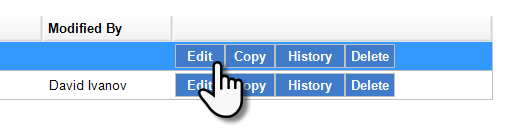
- Edit – Open this campaign for editing
- Copy – Open a copy of this campaign in order to create a new and similar campaign
- History – View a listing off all runs of this campaign
- Delete – Delete this campaign
NOTE: InTouch includes a default campaign for each campaign type (with the exception of Blast Campaigns) to provide a very good starting point for each campaign type.
Working with Tables
The following actions can be performed with the InTouch listings for:
- Campaigns
- Templates
- Patient Groups
Easily activate and deactivate items:
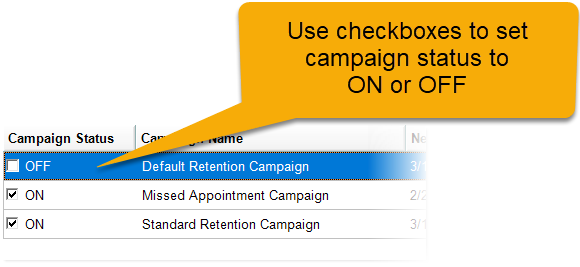
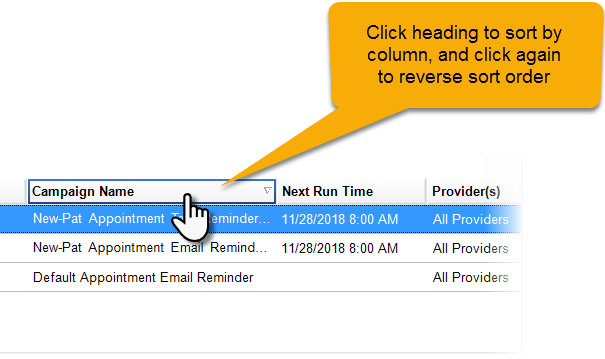
Re-sort tables by clicking column headings:
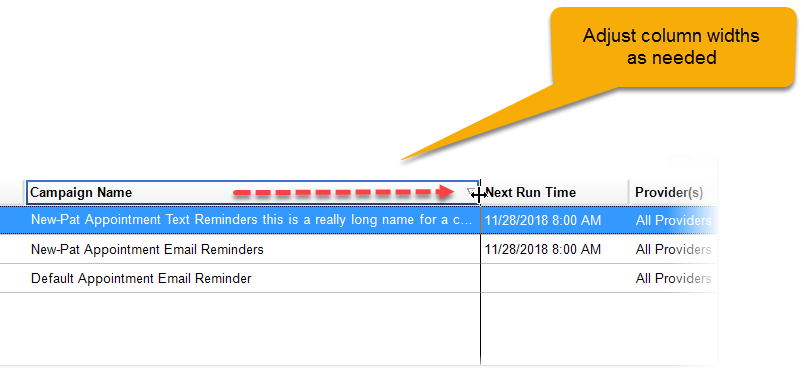
Adjust the width of columns:
Editing a Campaign
To begin editing an existing campaign, click the Edit button to open the Edit Campaign dialog. Make any changes needed, then click Save to save the changes and close.
Copying a Campaign
Copying an existing campaign gives you a starting point for creating a new campaign that is similar to the original.
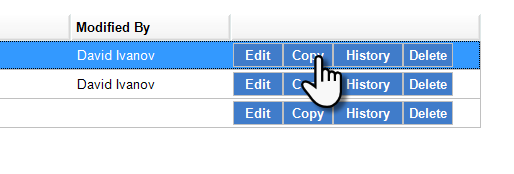
Click the Copy button. This opens the Copy Campaign dialog, which has all the data from the original campaign minus the name. Give the copy a descriptive name, make any changes necessary, and then save the new campaign.
Viewing Campaign History
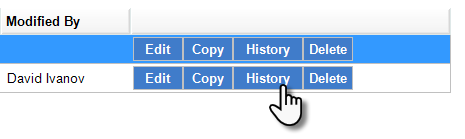
Click the History button to see this campaign's historical activity.
Deleting a Campaign
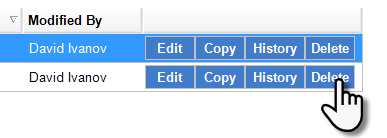
If a campaign is no longer needed, you can delete it by clicking its Delete button and confirming the deletion.
Obtaining Patient Consent
Incorporating consent into your Patient Sign-In app is a simple process with ChiroTouch. Once InTouch is activated on your system, a Full Patient Consent Form is automatically added to the Patient Self Check-In process. Patients can then either grant or refuse their consent via CT Sign-In or the CTM Sign-in mobile app. If the patient declines this consent the Text/Email Consent checkbox will remain unchecked, and the patient will not receive messages from InTouch. To restart communications for this patient, manually check the Text/Email Consent box.
Be aware that in ChiroTouch Version 7.2 going forward, the Text/Email Consent in Front Desk > Patient Information will automatically be enabled (checked) when a new patient is created.
IMPORTANT: Be sure that patients' cell numbers and emails are correctly configured in their Patient Information. For example, be sure that their cell numbers are identified as "cell" and not misidentified as home or work numbers.
Notice about Patients' Opt-Out Option for Texts
This is something to keep in mind regarding your text message campaigns. Patients can opt out of receiving text messages from InTouch without contacting your clinic about it. This is done by replying to your InTouch text with a simple keyword, such as STOP, UNSUBSCRIBE, etc.
For complete information on our SMS host's 'STOP' and 'START' filtering keywords, see here.